Test a Snapkit PNG Before You Print (Size, Quiet Zone, iPhone vs Android)
How to check the file Snapkit actually downloads: 256 px preview vs ~1024 px PNG, quiet zone, contrast, and a two-phone scan matrix.
The homepage shows a QR in a 256-pixel box. That widget is for feedback while you type. The file you should send to a printer is the Download PNG (rendered around 1024 pixels). People fail print runs by screenshotting the widget, cropping the white margin, or testing only on the phone that generated the code.
This is a Snapkit export checklist. It does not replace the longer print or size guides. Those stay as they are.
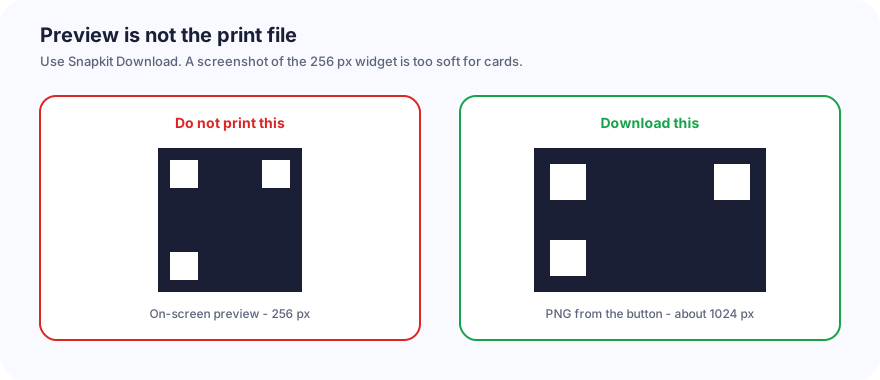
What you are holding
| Artifact | Size | Use |
|---|---|---|
| On-page preview | 256 × 256 CSS pixels | See that the pattern exists |
| Download PNG | About 1024 × 1024 | Print, Canva, InDesign |
| Phone screenshot of the site | Whatever the display is | Not a print file |
At 300 ppi, 1024 px is about 3.4 inches on a side if you place the file 1:1. You will almost always place it smaller than that. Scaling a sharp 1024 down to 0.8 in is fine. Scaling a 256 px screenshot up to 0.8 in is how modules blur.
Snapkit exports PNG, not SVG, from this button. If you need vectors, that is a different path (PNG vs SVG)—do not assume the homepage emits SVG.
Quiet zone (do not crop the PNG)
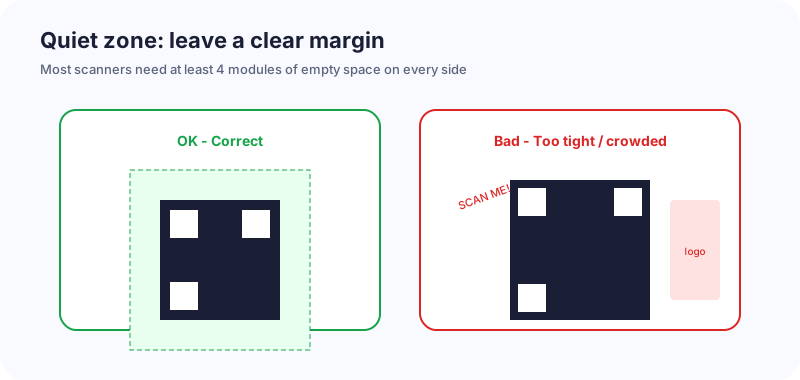
The download already includes a light margin. In layout tools, people drag a crop until the finder squares kiss the trim. Scanners want on the order of four module-widths of empty background on every side.
- Do not set the QR as a full-bleed edge treatment.
- If the card is navy, sit the PNG on a white (or unprinted) rectangle. The quiet zone is part of that rectangle.
- Rounded-corner stickers clip two sides—nudge the code inward.
Size vs Snapkit payload
Denser payloads (full Contact form, long SMS body, long URL) need more millimeters. Rough targets when the file is the official PNG and contrast is high:
| Snapkit type | Light payload | Heavy payload |
|---|---|---|
URL (short https://…) | ~2 cm / 0.8 in at arm’s length | Tracking URLs: larger or shorten |
| Wi‑Fi | ~2–2.5 cm | Long random PSK → larger |
| Contact (3 fields) | ~1.5–2 cm on a card | All six fields → ~2.5 cm |
| SMS / Email / Phone | ~2 cm if the body is short | Long mailto body → larger |
| Text paragraph | Often too dense for a card | Use a URL instead |
Farther away (window, poster): increase size. The size guide is the distance math; this table is “what I generate on Snapkit.”
Contrast after you restyle
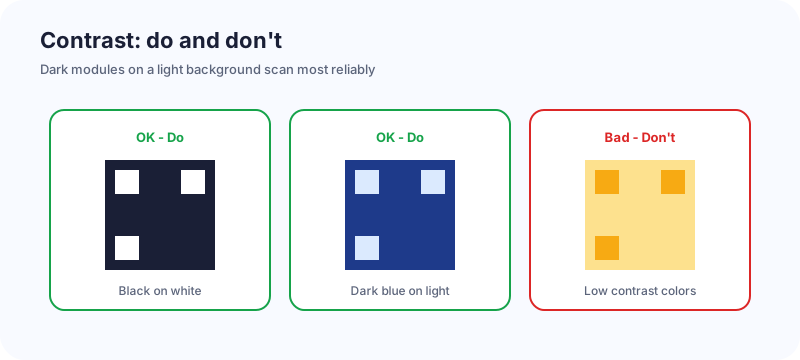
Default black on white is the reliable download. Paid customization (colors, dots, logo) is entitlement-gated and still has to survive a camera. Light gray on white, or a huge center logo, fails for the same optical reasons as any other QR. See color and design and won’t scan if the camera never locks.
iPhone vs Android matrix (same PNG)
Email the download to yourself. Open the file (not the live preview) on two phones. Stand where a stranger would stand.
| Test | Pass? |
|---|---|
| iPhone Camera locks on the PNG on a laptop screen | |
| iPhone Camera locks on a paper proof at final size | |
| Android Camera or Lens on the same paper | |
| URL / Wi‑Fi / Contact / SMS / Email / Phone does the right action | |
| After laminate / gloss (if you have a proof) |
iPhone and Android disagree on mailto:, SMSTO:, and vCard save sheets more than they disagree on “is this a QR.” If both cameras refuse to lock, fix size, contrast, or crop. If one locks and the action is wrong, you used the wrong type tab.
Wi‑Fi: a successful scan that still will not join is usually SSID, encryption, or a rotated password—see the Wi‑Fi guide.
Order of operations on snapkit.store
- Pick the correct tab. Type the payload. Wait for the preview to settle (there is a short debounce).
- Click Download. Open
qrcode.pngin an image viewer. It should look obviously larger/sharper than the widget. - Do not crop away the light border.
- Place at the millimeter size from the table. Keep the quiet zone.
- Paper-proof. Run the two-phone matrix.
- Then order the box.
Static codes will not update after that box arrives. If the URL will move, use a dynamic URL before print—not after.
I am Andrei Haiducu (Haiducu Development). If the download button and this description diverge, that is a product bug: [email protected].
Ready to create your QR code?
Try Snapkit's free QR code generator - no signup required.
Generate QR Code