PNG vs SVG for QR Codes: Which Format Should You Use?
Compare PNG and SVG for QR codes—print quality, file size, compatibility—and when Snapkit’s high-resolution PNG export is the right choice.
The Format Question
When you download a QR code, you'll usually see PNG (sometimes JPG) or SVG. Both can scan perfectly. The better choice depends on where the code will live: a social post, an email, a business card, a billboard, or a design system that needs vectors.
Common myth: "SVG is always better." Not for every channel. Another myth: every generator offers SVG. Snapkit's free generator exports high-resolution PNG—the format that works almost everywhere without conversion. This guide explains when PNG is enough, when SVG helps, how DPI math ties to physical size, and how to avoid print failures either way.
What PNG and SVG Actually Are
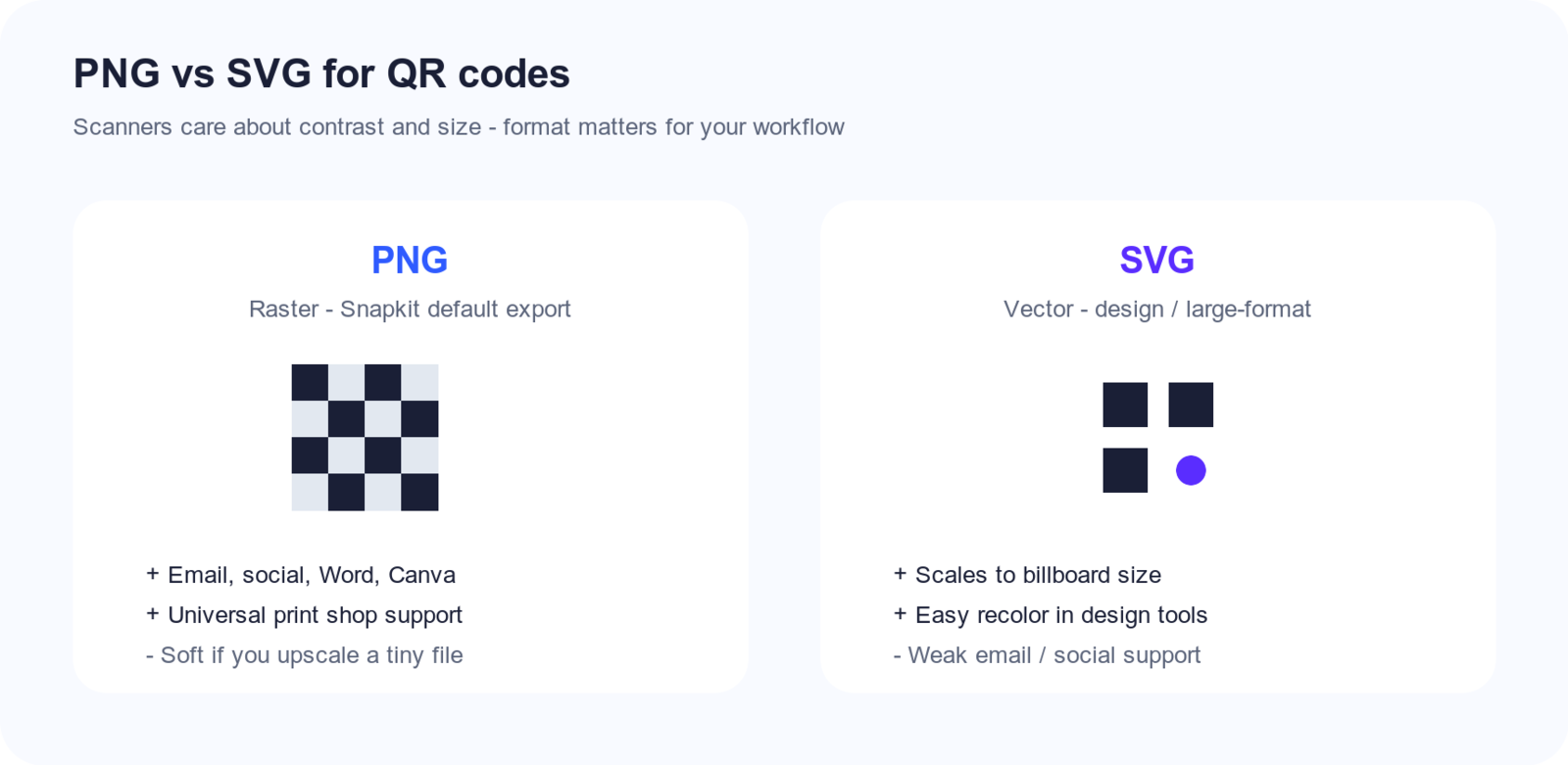
PNG (raster)
PNG stores a grid of pixels. Quality depends on resolution at export. Scale a small PNG up for a poster and it gets soft or blocky. Export large enough for the final print size and PNG stays sharp.
SVG (vector)
SVG describes shapes as paths. You can scale it to a billboard without losing edge sharpness. Designers love SVG inside Illustrator, Figma, or print pipelines that expect vectors.
For QR codes, both formats encode the same module pattern. Scanners care about contrast, size, and quiet zone—not whether the file is .png or .svg. Physical dimensions still follow the QR code size guide.
DPI Math: Pixels to Print Size
Printers and design tools think in DPI (dots per inch) or PPI (pixels per inch). For QR codes, you want enough pixels that each module prints as a crisp square—not a smear.
Formula: pixel width = print width (inches) × DPI
Examples:
| Final print size | DPI | Minimum pixel width |
|---|---|---|
| 1 in (2.5 cm) business card | 300 | 300 px |
| 2 in (5 cm) poster | 300 | 600 px |
| 6 in (15 cm) banner | 150–300 | 900–1800 px |
| 12 in (30 cm) billboard panel | 100–150 | 1200–1800 px |
At 300 DPI, 1000×1000 px prints up to 3.33 in (8.5 cm) square. A 400 px file is only ~1.33 in at 300 DPI on paper—fine on a phone preview, not on a poster.
Export 2× what you think you need if someone else places the file. Downscale in layout; never upscale.
When High-Resolution PNG Is the Right Choice
Use PNG when you need maximum compatibility:
- Social platforms that reject SVG uploads
- Email clients with inconsistent SVG support
- Office tools (Word, PowerPoint, Google Docs)
- Quick sharing with non-designers
- Most local print shops that accept PNG/PDF with embedded raster art
Snapkit downloads crisp PNG files sized for screen and typical print jobs (business cards, flyers, table tents, packaging inserts). For everyday marketing, that is usually all you need—especially if you generate at a large pixel size and avoid upscaling later.
Practical tip: Design at the size you will print. If the code must be 2 cm on a card, export large and let the layout tool scale down, never up from a tiny preview.
When SVG (or Another Vector) Helps
Prefer a vector workflow when:
- One master file must cover business card → poster → banner
- A brand designer will recolor or composite the code in a vector tool
- A print partner requests EPS/PDF/SVG for plate-ready work
- You need the smallest possible file for a simple black-and-white mark on the web
If your pipeline requires SVG and you started from Snapkit's PNG, convert carefully—see pitfalls below.
For large-format or multi-size campaigns, generating once as a large PNG or converting once to clean vectors—then testing—beats swapping formats every time someone asks for a new size.
Conversion Workflow Pitfalls (PNG → Vector)
- Soft traces round corners—use hard-edge presets or rebuild on a grid.
- Low contrast (
#333on cream) fails outdoors (design guide). - Quiet zone cropped on artboard fit—restore 4+ modules of margin.
- Logos become trace noise—regenerate or keep logo outside data.
- Low-DPI PDF flatten—embed high-res PNG or confirm print DPI.
Re-scan on two phones after conversion.
When JPG Fails (and Why PNG Wins)
JPG uses lossy compression. Photos tolerate it; QR codes do not.
Artifacts along edges confuse decoders; no transparency means white boxes on brand colors; social re-uploads make it worse. Use JPG for throwaway previews only—PNG for print, email, and signs.
Email and Social: Format Support
Channels differ. Plan the format before you design the campaign.
| Channel | PNG | SVG | JPG | Notes |
|---|---|---|---|---|
| Gmail / Apple Mail | Strong | Weak / blocked | OK for photos | Embed PNG for QR; test dark mode contrast |
| Outlook (desktop) | Strong | Limited | OK | Prefer PNG in body or linked image |
| Instagram feed / Stories | Yes | No upload | Yes | Use PNG; keep code large on canvas |
| Facebook / LinkedIn posts | Yes | No | Yes | Compression—avoid tiny codes |
| X (Twitter) | Yes | No | Yes | PNG for sharp edges |
| TikTok / YouTube thumbnails | Yes | N/A | Yes | Size for phone viewing distance |
| Word / Google Docs | Yes | Varies | Yes | PNG is the safe default |
| Canva / Figma | Yes | Yes (Figma) | Yes | Export PNG at print DPI for print |
PNG from Snapkit drops into Instagram and event templates without vector drama.
Designer Handoff Checklist
Give your designer (or print vendor) more than a screenshot:
| Item | Detail |
|---|---|
| File | PNG at ≥300 DPI for final size, or clean SVG/PDF |
| Physical size | e.g. 2.5 cm (1 in) square on card, 15 cm (6 in) on banner |
| Colors | Module and background hex values; confirm contrast |
| Quiet zone | Uncropped; call out if background is not white |
| Payload | Confirm URL or dynamic redirect is final (static vs dynamic) |
| Error correction | Note if logo overlaps code (how QR codes work) |
| Test proof | Link to live scan test from printed sample or high-res proof |
If the campaign uses dynamic QR codes, document that the printed image never changes—only the destination behind the redirect.
Snapkit PNG Workflow End-to-End
- Enter content in the free generator; use dynamic if the link may change.
- Set high-contrast colors/logo; don't screenshot—download PNG at max size.
- Place in layout at final size (size guide); scale down only.
- Preserve quiet zone; export per print guide.
- One physical proof, real-distance scan, then full run. Stuck? See won't scan.
Print Quality Checklist (Any Format)
Format alone will not save a bad layout. Before you approve a print run:
| Check | Why it matters |
|---|---|
| Minimum size | Too small → cameras cannot resolve modules (size guide) |
| Contrast | Light-on-light or low contrast fails outdoors |
| Quiet zone | Crowded margins break detection |
| Material | Gloss glare and textured stock hurt scans |
| Error correction | Higher levels help logos and wear (how QR codes work) |
See also QR code printing best practices.
File Size and Web Use
PNG QR files stay small vs photos; lazy-load on heavy pages. A 50×50 px asset won't scan at arm's length—fix pixel count and on-page size together.
Snapkit ships browser-side static generation and a PNG that opens everywhere. Need vectors later? Export large, convert cleanly, re-test—or use dynamic QR codes when the destination changes but print does not.
Quick Decision Guide
- Need it to work in email, social, and Office today? → PNG (Snapkit default)
- Designer running multi-size print from one master? → SVG/PDF vector pipeline
- Billboard or vehicle wrap? → Vector preferred, or very large PNG; always test
- Changing the URL later? → Dynamic code + whatever image format your designer uses
Create a Print-Ready Code
Generate a free static QR code with Snapkit—no account required—and download a high-resolution PNG. Pair it with the print guide before you send files to production.
Ready to create your QR code?
Try Snapkit's free QR code generator - no signup required.
Generate QR Code