QR Code Printing Best Practices: From Screen to Print
Everything you need to know about printing QR codes: file formats, resolution, color considerations, paper types, and common printing mistakes to avoid.
When Digital Meets Physical
On screen, your QR code looks perfect. Crisp edges, clean contrast. You send it to the printer, and when the stack comes back, something's off. The code scans inconsistently. Edges look fuzzy. Or worse—it doesn't scan at all.
The gap between digital preview and printed reality trips up a lot of people. Here's how to bridge it.
File Format Selection
Not all formats are created equal for print.
PNG – Best for most printing. Raster format with crisp edges and no compression artifacts. Use a high enough resolution (see below). This is what Snapkit provides by default.
SVG – Ideal for large-format printing. Vector format scales infinitely without quality loss. If you're printing banners, billboards, or vehicle wraps, SVG ensures the code stays sharp at any size. Learn more about SVG QR code benefits.
PDF – Good for professional printers. Can embed vector or high-res raster. Many print shops prefer PDF for precise control over output.
Avoid JPG – JPEG compression introduces artifacts that can interfere with module detection. A slightly blurred edge can break scanning. Stick to PNG, SVG, or PDF.
Resolution Requirements and DPI Math
For print, 300 DPI (dots per inch) is the standard minimum. That means each inch of your printed QR code should be represented by at least 300 pixels in your file.
Formula: pixels per side = print size in inches × DPI
Examples:
| Printed size | At 300 DPI (minimum) | At 600 DPI (extra sharp) |
|---|---|---|
| 0.8" × 0.8" (small card) | 240 × 240 px | 480 × 480 px |
| 1" × 1" | 300 × 300 px | 600 × 600 px |
| 2" × 2" (poster / table tent) | 600 × 600 px | 1200 × 1200 px |
| 4" × 4" (signage) | 1200 × 1200 px | 2400 × 2400 px |
| 12" × 12" (window decal) | 3600 × 3600 px | Use SVG instead |
Reverse check: If someone hands you a 400 × 400 px file and you print it at 2 inches wide, effective DPI is 400 ÷ 2 = 200 DPI—below the safe zone for critical scans.
When you download your QR code, choose the highest resolution available for your target print size. If you're unsure, err on the side of larger—you can always scale down, but scaling up a low-res file creates blur. Dense codes (like a long vCard) need a physically larger print area or a higher pixel count; see the size guide.
Color Considerations
QR code scanners rely on contrast. They need to distinguish dark modules from light ones. The greater the contrast, the more reliable the scan.
Best: Dark foreground (black, navy, dark gray) on a light background (white, cream, light gray). Classic and foolproof.
Acceptable: Dark colors on white with sufficient contrast. See our design guide for safe color combinations.
Avoid:
- Light on light (cream on white, pale blue on white)
- Low contrast (gray on gray)
- Gradients within the code pattern (can confuse module detection)
- Inverted schemes (light modules on dark background) unless you've tested thoroughly—some scanners struggle with these
Color Profiles: RGB, CMYK, and What Actually Prints
Screens are RGB; most shops print CMYK. Weak blacks become muddy gray on press and hurt scans.
- Use true black (or near-black) for modules, not faint brand navy.
- Export PDFs with the printer's preferred profile (SWOP, GRACoL, ISO Coated).
- Get a physical proof on large runs; soft-proof styled colors in CMYK when you can.
- Office inkjets/lasers usually accept RGB—still keep contrast high.
The Quiet Zone
Every QR code needs a quiet zone—a margin of the background color around all four sides. This border tells the scanner where the code ends. Without it, nearby graphics or edges can interfere with decoding.
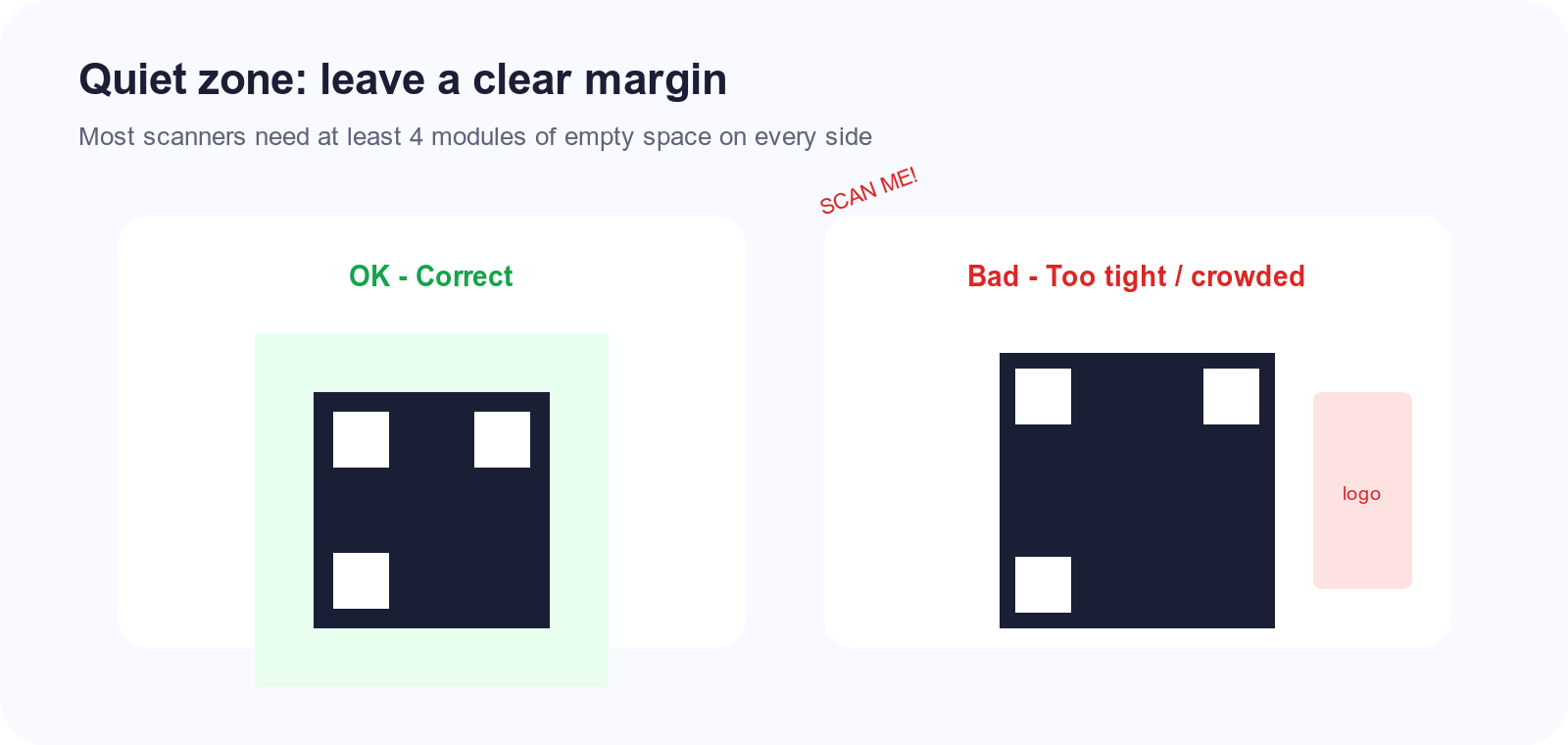
The quiet zone should be at least 4 module widths on each side. When preparing files for print, don't crop the code tight to the edge. Leave that white (or background) space. Check our size guide for more on this.
Bleed, Trim, and Layout
Bleed extends past the cut line; trim is the cut; safe area keeps the QR and full quiet zone intact—usually ⅛" inside trim on cards.
- Don't let bleed crop the quiet zone; use template safe-zone guides.
- Dark card designs still need a solid light patch around the code—no photo behind the modules.
- Rounded corners can clip margins; move the code inward or shrink it.
Paper and Material Selection
Matte vs glossy: Matte paper often scans better. Glossy surfaces can create glare under certain lighting, though many gloss prints work fine. If you're printing for outdoor or bright environments, matte reduces reflections.
Outdoor use: If your signage will face sun, rain, or handling, consider:
- UV-resistant laminate or coating
- Weatherproof substrates (corrugated plastic, metal)
- Lamination to protect the printed surface
Reflective materials: Avoid printing QR codes on highly reflective surfaces. Glossy metal or mirrored finishes can confuse cameras. If you must use them, test extensively.
Laminate, UV Coat, and Glare
Gloss laminate and spot UV add glare under ceiling lights and windows. Prefer matte or soft-touch laminate over the code; use anti-glare acrylic on face-mounted signs. Scan after coating—the same file can fail once shiny.
Specialty Materials: Acrylic, Fabric, Metal
| Material | Tip |
|---|---|
| Acrylic | Matte/frosted behind the code; test scan angle at event distance |
| Fabric | Bigger code than on paper; flat panel beats wrinkled tablecloth; SVG or very high-res PNG |
| Metal | High contrast etch or vinyl decal—polished metal alone rarely scans; plastic yard signs common in real estate |
| Stickers | Watch bubbles under the code—they create hot spots |
Wood, glass, and embossing blunt edges—oversize the code or switch to a short URL with a simpler pattern.
What to Tell Your Print Shop (Briefing Template)
Copy this with your artwork:
Job: QR code — [cards / poster / banner]
Quantity: [500] | Trim: [3.5" × 2"] | QR size: [1" × 1"]
File: [PNG / PDF / SVG at stated DPI]
Color: modules [100% K], background [white]
Do not crop quiet zone; QR inside safe area with [0.125"] bleed
Finish: [matte laminate preferred for scan reliability]
Physical proof required before full run
Must scan on iPhone + Android from [distance/use case]
Share scan troubleshooting with designers new to QR jobs.
Pre-Flight Checklist
Run through this before you approve the press:
| Check | Pass? |
|---|---|
| File format is PNG, SVG, or PDF (not JPG) | |
| Pixel dimensions meet 300 DPI at final QR print size | |
| Quiet zone visible on all four sides in the print file | |
| QR sits inside trim safe area (bleed won't cut modules) | |
| Foreground/background contrast is high (proofed in CMYK if offset print) | |
| Physical size meets minimum size for scanning distance | |
| No gradients or photos inside the module pattern | |
| Laminate/finish choice considered for glare | |
| Proof printed at actual size and scanned on iPhone + Android | |
| Destination URL or payload tested (dynamic links still live) |
One miss on this list is cheaper to fix on a proof than on ten thousand mailers.
Testing Before You Scale Up
Proof at actual size, scan on iPhone and Android, test from real viewing distance, and confirm payloads (vCard, dynamic links) still work after laminate. See common scan issues before you reprint wedding or card runs.
Get the print right the first time. Create your QR code with Snapkit, download in high resolution, and follow these practices for reliable scans every time.
Ready to create your QR code?
Try Snapkit's free QR code generator - no signup required.
Generate QR Code