How to Create a Wi-Fi QR Code for Guests (No Typing Passwords)
Stop spelling out your Wi-Fi password letter by letter. Learn how to create a QR code that lets guests connect to your network instantly with just a scan.
The End of "What's the Wi-Fi Password?"
Every host knows this moment. A guest arrives, pulls out their phone, and asks for the Wi-Fi password. You rattle off some combination of uppercase letters, numbers, and symbols. They type it wrong twice. You end up taking their phone and typing it yourself.
There's a better way. A Wi-Fi QR code lets guests scan and connect in about two seconds, no typing required. It works on both iPhone and Android, and once you set it up, you never have to spell out Tr0ub4dor&3 ever again.
How Wi-Fi QR Codes Work
When you scan a Wi-Fi QR code, your phone reads the encoded network credentials and prompts you to join that network. It's essentially the same as manually entering the network name and password, except the code does all the work.
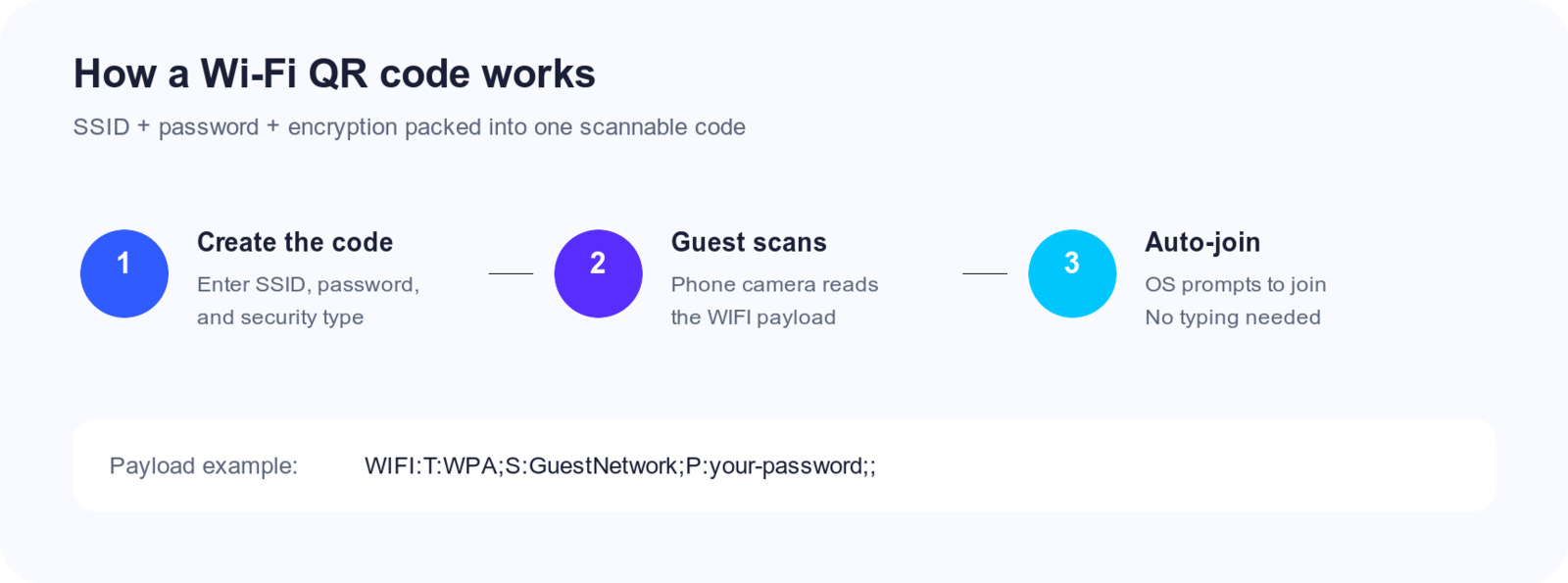
The QR code contains three pieces of information:
- Network name (SSID) – What your network is called
- Password – The key to get in
- Security type – Usually WPA/WPA2, sometimes WEP for older networks, or "nopass" for open networks
Your phone extracts this info, pre-fills the connection dialog, and you just tap "Join" or "Connect." Done.
Creating Your Wi-Fi QR Code
The format for Wi-Fi QR codes follows a standard pattern that all modern smartphones understand:
WIFI:T:WPA;S:YourNetworkName;P:YourPassword;;
Breaking that down:
WIFI:tells the phone this is Wi-Fi informationT:specifies the security type (WPA, WPA2, WEP, or nopass)S:is your network name (SSID)P:is the password;;marks the end
So if your network is called "HomeNetwork" with the password "secretpassword123" and WPA2 security, you'd encode:
WIFI:T:WPA;S:HomeNetwork;P:secretpassword123;;
Just paste that string into Snapkit (or any QR generator), and you'll get a scannable code. That's it.
Step-by-Step Setup
Here's exactly how to do this:
1. Find your network name Look at your available Wi-Fi networks on any device. The name you see is your SSID. It's case-sensitive, so copy it exactly.
2. Get your password Check your router's label, your router admin page, or wherever you originally set the password. Again, exact spelling and capitalization matter.
3. Identify your security type Most home networks use WPA2 (or WPA3, but WPA works for both in QR codes). If you're unsure, WPA is almost always correct for any network that requires a password.
4. Build the string
Put it together: WIFI:T:WPA;S:YourNetwork;P:YourPassword;;
5. Generate the code Paste the string into a QR code generator. Download or print the result.
6. Test it Before you hang it on the wall, scan it with your own phone to make sure it works. Try a friend's phone too, ideally both iPhone and Android.
Where to Put Your Wi-Fi QR Code
Once you've got a working code, display it somewhere guests can easily find it:
At home:
- Framed on the wall in a common area
- On the refrigerator
- Inside a guest room or home office
- Near the entryway
In a rental property (Airbnb, VRBO):
- Inside the welcome booklet
- On a small card near the router
- Framed in the living room or bedroom
In a business:
- At the reception desk
- On table tents in a café or restaurant
- On the wall in waiting areas
- Printed on receipts or menus
Pro tip: Include the network name and password as text alongside the code. Some older phones can't scan Wi-Fi QR codes directly, and it's nice to have a fallback.
What About Hidden Networks?
If your network is configured to hide its SSID (doesn't broadcast its name), you can still create a QR code—just add H:true to the string:
WIFI:T:WPA;S:HiddenNetwork;P:password;H:true;;
The H:true tells the phone to look for a hidden network by that name.
Security Considerations
Let's address the obvious question: is it safe to post your Wi-Fi password on a QR code?
Honestly? It depends on the situation.
For a home network where guests are invited anyway, a QR code isn't really less secure than telling them the password verbally. Either way, they end up with the credentials.
For businesses, consider a few options:
- Use a separate guest network isolated from your main business systems
- Change the guest password periodically and reprint the code
- Place the code where only customers (not passersby through a window) can scan it
The QR code doesn't make the password itself more vulnerable—anyone who can see the code can scan it and get the password. Just be thoughtful about where you post it.
When QR Wi-Fi Codes Won't Work
A few scenarios where this approach has limitations:
Very old phones. Devices running Android 9 or earlier, or iOS versions before 11, may not recognize Wi-Fi QR codes natively. Users might need to download a third-party scanner app.
Enterprise networks with 802.1X authentication. If your network requires username and password (common in corporate environments), simple Wi-Fi QR codes won't work. Those require more complex provisioning.
Networks with web-based login portals. Captive portals (like hotel Wi-Fi where you enter a room number) can't be automated with a QR code.
The Simpler Approach
If building that WIFI:T:WPA;S:...;P:...;; string feels tedious, some QR generators have a dedicated "Wi-Fi" mode where you just fill in fields for network name, password, and security type. They construct the proper format behind the scenes.
Either way works. The code you generate will be a standard Wi-Fi QR code that any modern smartphone can read.
Skip the password dictation routine. Create your Wi-Fi QR code in about 30 seconds, print it out, and enjoy being the host who actually made connecting easy.
Ready to create your QR code?
Try Snapkit's free QR code generator - no signup required.
Generate QR Code