URL vs Text on Snapkit: What Each Tab Encodes
The homepage URL and Text tabs look alike. Here is the exact field, the string Snapkit encodes, why Dynamic exists only on URL, the 1,000 / 1,200 character warnings, and how iPhone vs Android open the result.
Two homepage tabs share a preview box and a Download button. They do not share a payload. URL stores the address you typed and asks a camera to open a browser. Text stores the exact words on screen. If you pick the wrong one, the scan still “works.” The person just does the wrong action—reads a link instead of opening it, or lands in a browser when you meant a notice.
This is the Snapkit implementation of those two tabs. It is not a generic QR tutorial. The other types (Wi‑Fi, Contact, SMS, Email, Phone) have their own field docs. How the canvas and PNG work is a separate page; that table only summarizes URL and Text in one row each.
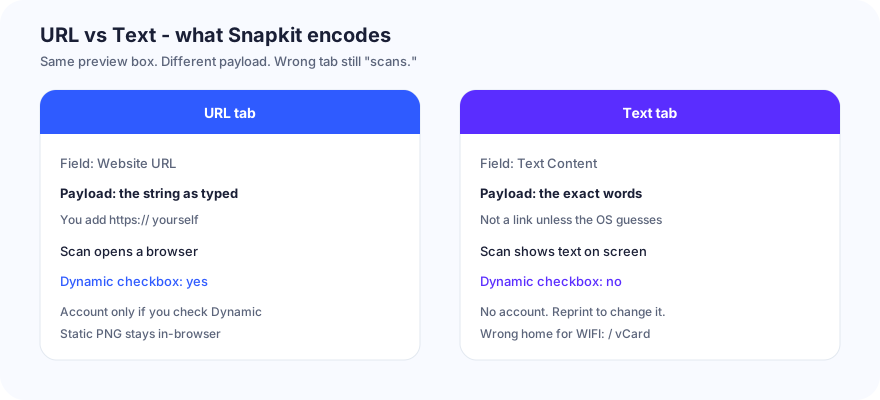
Side-by-side
| Tab | Fields | Encoded payload | Opens on scan | Dynamic toggle? | Account required? |
|---|---|---|---|---|---|
| URL | Website URL | The string as typed (add https:// yourself) | Browser, if the camera treats it as a link | Yes — “Make this QR Code Dynamic (Editable)” | Only if you check Dynamic |
| Text | Text Content | The exact text in the box | On-screen text (a URL inside the text may become tappable) | No | No |
Empty or whitespace-only input does not produce a downloadable code. The preview stays a placeholder until the field has something real.
Static generation stays in the browser. We do not upload the URL or the paragraph unless you later create a dynamic code (URL destinations only). The print is still public: anyone who photographs the PNG can decode it.
URL tab
One field, labeled Website URL. Placeholder: https://your-website.com. Helper text: enter the full URL including https://.
Snapkit encodes whatever you typed. There is no silent prefix. example.com, www.example.com, and https://example.com are three different strings. The first two often scan “fine” and then sit there as text, or open on one phone brand and not the other.
Static URL PNG (checkbox off, no account): the downloaded picture contains the destination itself. Change the site later and you reprint—or you switch the print to a short link you control.
Dynamic checkbox lives on this tab only. Label: Make this QR Code Dynamic (Editable). Copy on the control: change the destination after printing, plus scan analytics. Unchecked download is still the local PNG. Checked download without a session opens the sign-up modal (then the dashboard create flow). A printed dynamic code encodes a Snapkit short link (/r/…), not the final page. That is why Text has no box: there is nothing to redirect. Details: static vs dynamic and /dynamic.
Do not put [email protected] or tel: here. Those are the Email and Phone tabs.
Text tab
One field, labeled Text Content. A textarea. Helper: any plain text message or information.
The payload is the characters on screen. No https:// wrapper, no SMSTO:, no BEGIN:VCARD unless you typed those yourself. A scan shows the words. Some cameras notice a URL inside the paragraph and offer a chip. Treat that as a bonus, not a product guarantee. If the job is “open this page,” use URL.
Bad place for structured strings. If you paste WIFI:…, a vCard, or SMSTO:… into Text, you skipped the tab that formats those payloads. Use Wi‑Fi, Contact, or SMS / Email / Phone. Text will not invent a join sheet or a Save Contact prompt.
There is no Dynamic checkbox. Reprint to change the sentence. No account.
Use it for a door code, a table number, a one-line instruction, a coupon string you want visible offline. Do not paste a menu, a privacy policy, or a blog post. That is a web page with a short URL in the URL tab.
Character density
The counter under both fields is the length of the encoded string. Warning near 1,000 (amber: approaching limit). Past about 1,200 the button reads Content Too Long and download is disabled. That is a hard stop on this product, not a suggestion.
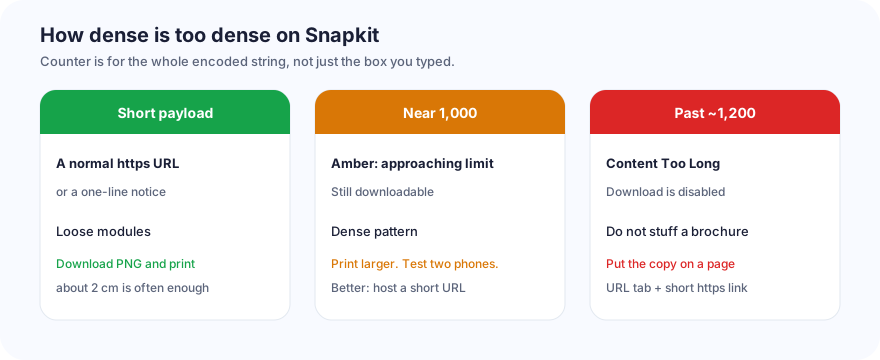
| Payload | What the homepage does | What I do instead |
|---|---|---|
Short https://… or a one-line notice | Counter stays quiet | Download PNG, print ~2 cm if contrast is clean |
| Tracking URL or a long paragraph, ~1,000 chars | Amber warning | Print larger, or host a page and encode a short URL |
| Novel / full menu / legal dump, ~1,200+ | Download blocked | Put the copy on a site. URL tab. Never Text-stuff. |
Level H error correction is already on. More characters still mean more modules. A dense Text PNG on a business card is how you get “it scanned on my phone in the office.”
Preview is 256 px. Download is about 1024 px PNG. Do not screenshot the widget. Test the PNG before a press run.
iPhone vs Android after a Snapkit scan
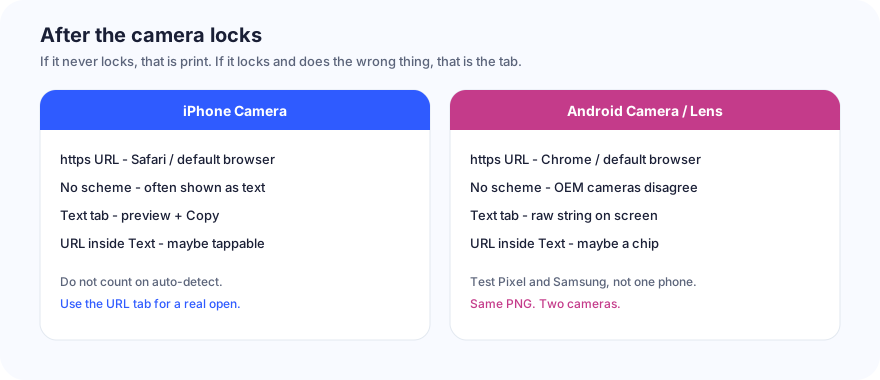
| Check | iPhone Camera | Android Camera / Lens |
|---|---|---|
URL with https:// | Preview, then Safari / default browser | Chrome / OEM default browser |
URL missing a scheme (example.com) | Often shown as text; sometimes offered as a site | OEM cameras disagree; do not ship this |
| Text (plain words) | Text preview, usually Copy | Raw string on screen |
| URL typed inside Text | May become tappable | May show a chip. Not the URL tab. |
Dynamic URL (account, short /r/ link) | Browser to Snapkit, then the destination | Same; needs our redirect |
| Airplane / dead LTE | Browser fails for a URL; Text still displays | Same |
| Wrong tab (link in Text) | Words, maybe a link chip | Same — not a clean “open site” |
If the camera never locks, that is size, contrast, or crop—not “URL vs Text.” Start at QR code won’t scan and test the PNG.
Common self-owns
| What you did | What the scan does | Fix |
|---|---|---|
yoursite.com in URL, no https:// | Locks, then shows text or opens on one brand only | Type the full https://… |
https://menu.example in Text | Shows the URL as words; maybe a chip | Use the URL tab |
WIFI:… or a vCard pasted into Text | Raw string. No join / Save Contact | Wi‑Fi or Contact tab |
SMSTO: / mailto: / tel: in Text | Raw string. No draft or dialer | SMS, Email, or Phone |
| Screenshot of the 256 px preview | Soft modules after print | Download PNG (~1024 px) |
| Brochure in Text until the counter goes red | Button: Content Too Long | Host a page. Short URL. |
| Expecting Text to become editable later | It will not. No checkbox. | URL + Dynamic, or reprint |
Email address in URL (https://hello@…) | Browser error | Email tab |
The printed static PNG is the data. Treat a Wi‑Fi password or a private note in Text the same way you would treat it taped to the wall.
Build list (this product)
- Open snapkit.store. Choose URL or Text.
- URL: type a real
https://…destination. Text: type only the words you want on the scanner’s screen. - Need to change the destination after print? URL tab, check Dynamic, create an account. Text cannot do that.
- Download PNG. Do not screenshot the 256 px box.
- Scan the file on one iPhone and one Android. Confirm the action, not just the lock.
- If the counter is yellow, host a page and put a short URL in the URL tab.
These two tabs are the default because most jobs are “open a page” or “show a line of text.” They are the wrong tabs for Wi‑Fi, contacts, and drafts. Use the tab that matches the action.
Ready to create your QR code?
Try Snapkit's free QR code generator - no signup required.
Generate QR Code