WiFi Fields Snapkit Actually Encodes
The homepage WiFi tab maps four fields into a WIFI: string. Here is the exact encoding, encryption options, why Dynamic never appears, and how iPhone vs Android join.
The Snapkit homepage has a WiFi tab, not a “paste any WIFI: string” box. You fill four controls. The browser builds one payload and draws a static PNG. If you expect WPA3 as a fourth option, a Dynamic checkbox, or scan analytics on a guest sign, the form will not invent them.
This page is the field list as implemented. It is not a rewrite of the generic guest Wi‑Fi guide—that article is the WIFI: format, placement, and “stop spelling the password” walkthrough. How the canvas and PNG work is a separate page.
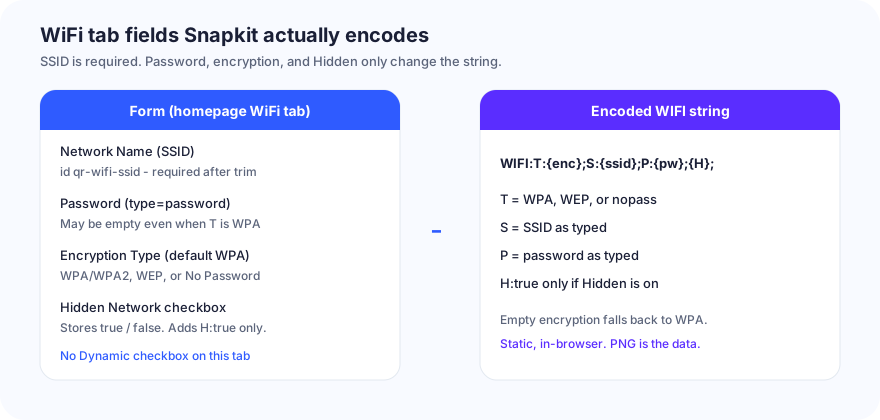
Field → payload
Download and preview are valid when Network Name (SSID) is non-empty after trim. Password, encryption, and Hidden do not gate the button.
| Form label | Control | Encoded as | Notes |
|---|---|---|---|
| Network Name (SSID) | text, id qr-wifi-ssid, placeholder MyWiFiNetwork | S:{ssid} | Required. Typed as-is. Case-sensitive, like the AP. |
| Password | password, id qr-wifi-password, placeholder Enter WiFi password | P:{password} | Optional. Empty string is allowed. Always present as P:, even under No Password. |
| Encryption Type | select, id qr-wifi-encryption | T:{value} | Default WPA. Empty value also falls back to WPA. |
| Hidden Network | checkbox, id qr-wifi-hidden | H:true; only when checked | Stores "true" / "false". Unchecked adds nothing (H:false is not written). |
Wrapper is always:
WIFI:T:{encryption};S:{ssid};P:{password};{optional H:true;};
Visible network, WPA, password secret:
WIFI:T:WPA;S:CafeGuest;P:secret;;
Same network, Hidden on:
WIFI:T:WPA;S:CafeGuest;P:secret;H:true;;
Generation is in the browser. The string is not uploaded. There is no account requirement for a default static PNG. The print is still public: anyone who photographs or decodes the PNG reads the password. Treat a guest-network sign the way you would treat the password taped to the wall.
Encryption options
The select has three rows. There is no WPA3 option. If the access point is WPA2 or WPA3-personal, the value you send is still WPA—that is what the tab emits, and what most Camera join sheets expect.
| Label in the form | Value in T: | When to use it |
|---|---|---|
| WPA/WPA2 (default) | WPA | Almost every password-protected home / café / guest SSID |
| WEP | WEP | Legacy hardware that still advertises WEP. Do not pick this to “be compatible.” |
| No Password | nopass | Open SSID. The password field stays on screen and is still written into P:. |
Footgun: leave WPA/WPA2 selected and skip Password. Snapkit still downloads. The camera still offers Join. The AP rejects the empty PSK. The product does not pair-check encryption against the password box.
Second footgun: switch the select to No Password and leave leftover characters in Password. Those characters still land in P:. Clear the box if the network is open.
Enterprise 802.1X (username + password, certificates) and captive portals (hotel splash, room-number page) are out of scope for this tab. A WIFI: join sheet cannot fill those. Put a URL to the portal instructions in the URL tab, or keep the generic guest guide for the format background.
Hidden Network
Check Hidden Network only if the AP does not broadcast the SSID. The checkbox writes "true" or "false" in form state; the encoder adds H:true; only for "true".
Do not check it “just in case.” Phones then look for a non-broadcast name. If the network is visible in the picker, leave the box off.
No Dynamic, no analytics
The homepage checkbox Make this QR Code Dynamic (Editable) is shown only when the type is URL. WiFi has no Dynamic control and no scan-count product for this payload. A printed WIFI: string is the credentials. Rotate the guest password later and you reprint—or you stop using this tab and print a short URL you control.
Details: static vs dynamic and how Snapkit generates codes.
iPhone vs Android after a Snapkit WiFi scan
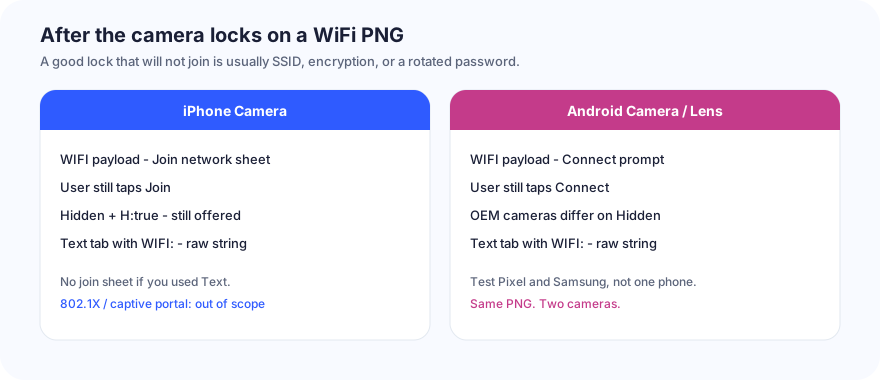
Modern Camera apps recognize a WIFI: payload and offer Join (iPhone) or Connect (Android). The user still confirms. Snapkit does not join the network for them.
| Check | iPhone Camera | Android Camera / Lens |
|---|---|---|
Valid WIFI: from this tab | Join sheet with the SSID | Connect prompt; OEM chrome differs |
Hidden + H:true; | Usually still offered as that SSID | Pixel / Samsung / Lens disagree; test both |
| WPA selected, empty password | Sheet appears; join fails on a real WPA AP | Same |
WIFI:… pasted into Text | Raw string. No Join sheet | Same — not this tab |
| 802.1X / captive portal | Not a WIFI join | Not a WIFI join |
| Airplane / radio off | Sheet may appear; radio cannot associate | Same |
| Camera never locks | Size, contrast, crop — not “WiFi vs URL” | Same |
If the camera never locks, start at QR code won’t scan and test the PNG. If it locks and still will not associate, that is SSID spelling, encryption, or a password you rotated—not a Snapkit scan bug.
Preview vs download
Preview is 256 px. Download is about 1024 px PNG. Do not screenshot the widget. Send the downloaded file to print or layout tools. Same rule as the other Snapkit product posts.
Special characters
SSID and password are inserted as typed. Snapkit does not escape ;, \, ", or :. Those characters are delimiters in the WIFI: grammar. A semicolon inside the PSK can make one phone parse a truncated password and another show the raw string.
If the guest network name or password has those characters, generate the PNG, then scan the file on an iPhone and an Android before you print a stack of table tents. Prefer a guest SSID that does not need escaping.
Common self-owns
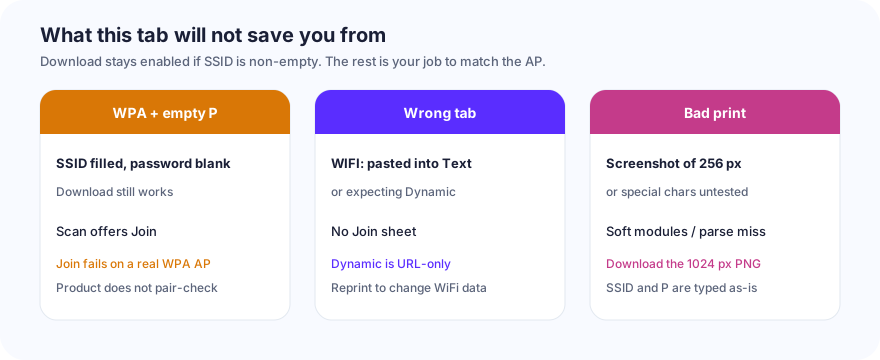
| What you did | What the scan does | Fix |
|---|---|---|
| Encryption set to WEP on a WPA2 AP | Join / Connect, then auth failure | Select WPA/WPA2 (T:WPA) |
| WPA selected, Password left empty | Download works; join fails | Type the real PSK, or switch to No Password only if the AP is open |
; or \ in SSID / password | One brand joins, the other truncates or shows text | Test two phones; simplify the guest PSK if you can |
WIFI:T:WPA;S:…;P:…;; pasted into Text | Raw string. No Join sheet | Use the WiFi tab |
| Screenshot of the 256 px preview | Soft modules after print | Download PNG (~1024 px) |
| Expecting Dynamic / analytics on WiFi | There is no checkbox | URL + Dynamic, or reprint when the password changes |
| 802.1X office SSID in this tab | Join sheet cannot collect a username | Out of scope; this tab is PSK / open / WEP |
| No Password with leftover PSK text | T:nopass plus a non-empty P: | Clear Password when the network is open |
Build list (this product)
- Open snapkit.store. Choose WiFi.
- Type the exact SSID. Type the password only if the AP has one.
- Leave WPA/WPA2 unless the radio is actually WEP or open. Check Hidden Network only if the SSID is not broadcast.
- Download PNG. Do not screenshot the 256 px box.
- Scan the file on one iPhone and one Android. Confirm Join / Connect, then that the radio actually associates.
- Print the human-readable SSID next to the mark. Prefer a guest network isolated from the LAN you care about.
This tab is the remaining homepage type that needed a field map. URL, Text, Contact, SMS, Email, and Phone already have theirs. Use the guest Wi‑Fi guide for placement and the WIFI: grammar; use this page when you need to know what the Snapkit form actually writes.
Ready to create your QR code?
Try Snapkit's free QR code generator - no signup required.
Generate QR Code