Snapkit Logo, Dots, and Colors: What Customize Design Changes
What the homepage Customize Design panel paints in the PNG, which of those downloads work with no account, and what a center logo did in a preview decode.
The homepage has a style panel. It is collapsed, the heading is Customize Design, and the badge on that heading is Premium. Leave it alone and a black-on-white static QR downloads with no account. Open it and change one control, and the signed-out Download button I measured stops saving a file.
This page is that panel: the labels, what they paint, the download gate I actually hit, and a preview-canvas decode of a center logo. It is not a second copy of how Snapkit generates a code, and it is not the generic contrast article. Contrast ratios and CMYK live on colors and design. Use that when you need the theory. Use this when you need the controls on snapkit.store.
Default download, before you style anything
Type a URL. Leave the style panel at its defaults:
| Control | Label on the page | Default |
|---|---|---|
| Module color | Foreground | #000000 |
| Light field | Background | #ffffff |
| Center image | Logo (centered) | empty, button Upload PNG / JPEG |
| Module shape | Dot Style | Square (also Rounded, Smooth) |
| Finder shape | Corner Eye Style | Square (also Rounded, Dot) |
The button reads Download PNG. It saves qrcode.png. After that file starts, a dialog can open:
- Title: Download started
- Line under it: Quick tips before you print or share your code.
- Printing this? — Size, resolution, and contrast tips so it scans on paper.
- Need to change the link later? — Static vs dynamic — when you can edit without reprinting.
- Worried it won’t scan? — Quick fixes for contrast, quiet zone, and density issues.
- Close control: Maybe later
That path does not ask you to sign in. Clear the URL field and the same button reads Enter Content to Download, with Add content above to enable your PNG download. under it.
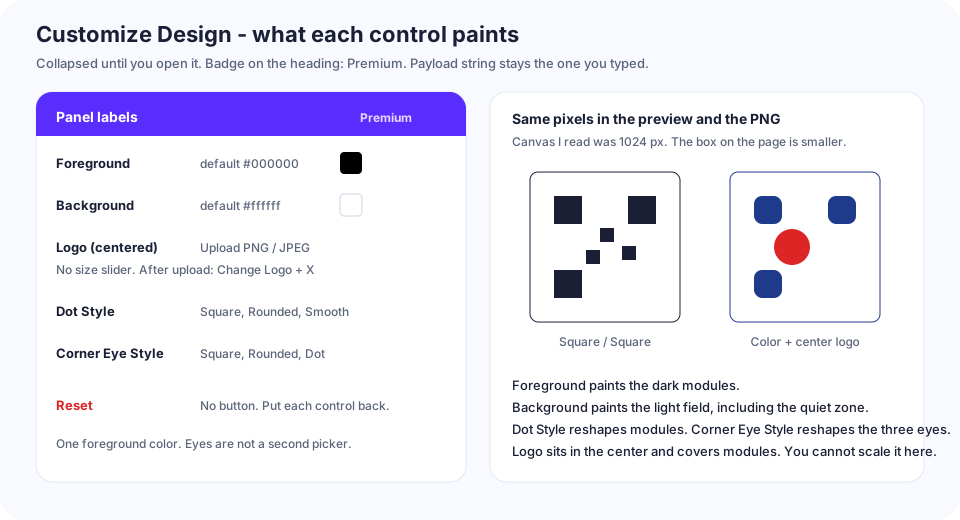
The picture in the 256 px box and the file from Download PNG are the same render. The canvas I read off the live page was 1024 × 1024. The smaller box is the CSS size. Screenshot-versus-file, quiet zone, and a two-phone print check are already written up in test the PNG before print. I am not repeating that. I only decoded the 1024 canvas in the browser. I did not photograph a print with two phones.
What each control changes
There is no Reset. There is no third color for the eyes. Foreground is the only dark color, so the modules and the three corner eyes share it. Background is the light field, quiet zone included. Dot Style only changes module shape. Corner Eye Style only changes the three finders. The string you typed does not change when you restyle.
| Control | Preview | Downloaded PNG, when a download is allowed | Account, signed out |
|---|---|---|---|
Foreground off #000000 | Dark modules switch to that hex. I set #1e3a8a and a dark module sampled as rgb(30, 58, 138). | Same paint as the preview. | Button disables. See the gate below. |
Background off #ffffff | Light field switches. I set #fff4e5. | Same paint. | Same gate. |
| Dot Style Rounded or Smooth | Module shape changes. Square is the default. | Same shape. | Same gate. |
| Corner Eye Style Rounded or Dot | Finder shape changes. Square is the default. | Same finders. | Same gate. |
| Logo (centered) | Image sits in the middle and covers modules. Button becomes Change Logo. A thumbnail is labeled Logo preview. An X beside it clears the image. | Same centered image. | Same gate. Clearing the logo, with every other control back at the defaults, returned Download PNG. |
| All five back to the defaults | Black modules, white field, square dots, square eyes, no logo. | qrcode.png | Download PNG is enabled again. |
The file input accept is image/png,image/jpeg. The button text is the only format hint: Upload PNG / JPEG. I did not see a megabyte cap, a pixel cap, or a warning after upload. I uploaded 64 px and 80 px PNGs. Both were accepted and painted at the same center size. You cannot shrink or enlarge the mark from this panel.
The gate is any customization, not a per-control price
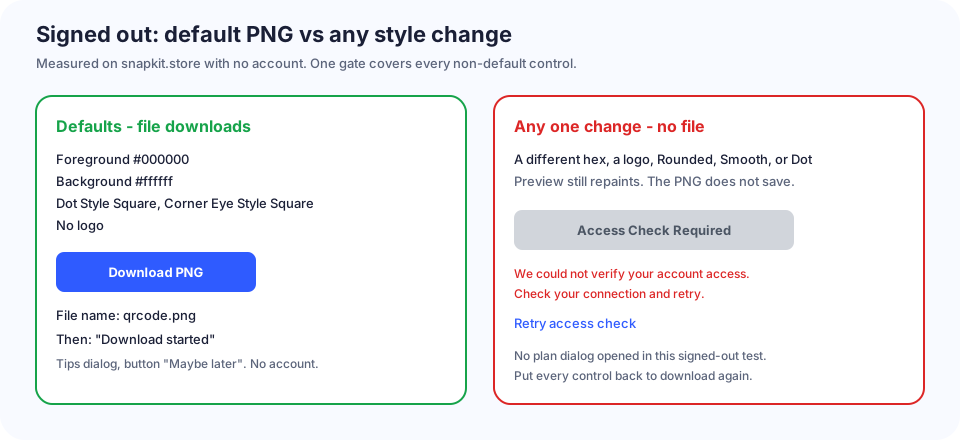
I changed one control at a time on the live homepage, signed out, on 24 Sep 2026. Each of these left the preview updated and blocked the file:
- Foreground
#1e3a8a - Background
#fff4e5 - Dot Style Rounded
- Dot Style Smooth
- Corner Eye Style Dot
- A center PNG logo
The button label becomes Access Check Required and the button is disabled, so the click does not download. Under it:
We could not verify your account access. Check your connection and retry.
The link under that line is Retry access check. I did not get a PNG out of that state.
While the check is still running, the same button can read Verifying Access… and the line under it can read Verifying your account access before download…. By the time I looked, that had already finished and the error above was what stayed on screen.
The page also ships a dialog I did not see open while signed out:
- Title: Unlock Your Custom QR Code
- Body: Custom branding, logo uploads, and unlimited styling are exclusive features of our premium plans.
- Bullets: Custom foreground & background colors, Branded logo in the center of your code, Custom dot & corner eye styles
- Primary button: Start free trial when there is no session, Upgrade to Unlimited when there is
- Secondary: Maybe later
Signed out, Download was already disabled, so that dialog never had a chance to show. I did not sign in, and I did not start a trial, so I cannot tell you that a logged-in Starter session sees Upgrade to Unlimited or that an Unlimited session saves the styled PNG. What I can quote is the pricing page.
On /dynamic the cards say:
| Card | Price on the page | Style lines on that card |
|---|---|---|
| Free Trial | $0 for 14 days | Included: Custom colors & branded logo uploads. Custom QR shapes & styles. |
| Starter | $5 one-time | Limitation: Custom colors, logos & shapes. |
| Pro | $9 one-time | Limitation: Custom colors, logos & shapes. |
| Unlimited | $7 /month | Included: Custom colors & branded logo uploads. Custom QR shapes & styles. |
Pro is not the style plan on that page. The cards that list the style features as included are Free Trial and Unlimited. Starter and Pro list Custom colors, logos & shapes with the limitations. Treat that as the pricing copy, not as a download I completed.
Make this QR Code Dynamic (Editable) is a different checkbox, URL tab only. That path is static vs dynamic and /dynamic. A static URL with only a color change is already inside the style gate above. You do not have to touch Dynamic to hit it.
Inside the open panel, a signed-out session that has finished the check in an error state does not show an extra “preview only” banner. The disabled button and the red line are the gate I was looking at. The preview itself keeps painting, which is why you can study the look before you have a file.
Logo, and the one style that failed a decode
A center logo spends error correction. The image covers modules. The rest of the code is what a camera uses to rebuild the hidden ones. Snapkit does not show an error-correction level, a coverage percent, or a “this may not scan” warning when you upload.
There is no size control, so I could not hunt for a break point by dragging a slider. I measured the paint instead. On the live 1024 × 1024 preview canvas, an opaque red PNG landed as a centered square about 280 px wide (a bit over a quarter of the canvas). A 64 px file and an 80 px file painted that same square. The panel scaled them. It did not use the file’s pixel size as the logo size.
I then ran an in-browser decode (jsQR) on that canvas. Not a phone camera. Not a print.
| What was on the preview | jsQR result for the URL I had typed |
|---|---|
Defaults, short https://snapkit.store | Decoded |
Foreground #1e3a8a on #ffffff | Decoded |
Background #fff4e5, foreground still black | Decoded |
| Dot Style Rounded, otherwise default | Decoded |
| Corner Eye Style Dot, otherwise default | Decoded |
| Opaque red center logo, square dots | Decoded |
| Smooth dots plus that red logo | Decoded |
| Dot corners plus that red logo | Decoded |
Near-white logo (#fafafa) on the default black modules | Decoded |
| URL of about 200 characters, no logo | Decoded |
| That longer URL plus the red logo | Decoded |
Foreground #ffe14a on #ffffff | Did not decode. The dark-module sample was rgb(255, 225, 74). |
So, at the one logo size this panel paints, these URLs still decoded here. I am not going to invent a “breaks at 30%” rule or a two-phone matrix I did not run. Phone cameras and a laminated card can still disagree with jsQR, especially once the modules are pale. The failure I did reproduce was the light foreground, not the logo.
If the camera never locks, start at QR code won’t scan and then test the PNG. If the camera locks and the colors merely look muddy in print, the contrast and CMYK notes are the color guide.
A styled preview is not a styled file. While signed out I could decode the canvas and I could not download it. The PNG you hand a printer has to come from Download PNG, after the access check succeeds.
Safe and risky on these controls
This is not a redo of the generic color chart. It is the combinations this panel can actually make, tied to the gate and the decode above.
| Combination | Signed-out download | What I would do with it |
|---|---|---|
#000000 / #ffffff / Square / Square / no logo | Download PNG | Use this for anything you are about to print and you do not have an account. |
Dark foreground such as #1e3a8a on white or #fff4e5, square modules, no logo | Access Check Required | Preview decoded here. Still need an entitled download, then a phone test. Contrast theory is the color guide. |
| Rounded or Smooth, or Dot eyes, high contrast, short URL | Access Check Required | Preview decoded here, including Smooth with a center logo. Finders are less square. Test the PNG on a phone before a press run. |
| Center logo at the size the panel paints, high-contrast modules around it | Access Check Required | No slider. My jsQR reads succeeded. The product will not warn you if a phone disagrees. |
Foreground #ffe14a on #ffffff | Access Check Required | Do not print. The preview decoder already failed, and the file is gated anyway. |
| Logo plus a light foreground | Gated, and you have spent the center and the contrast | Put the modules back to a dark hex before you care about the logo. |
| Starter or Pro because you wanted colors | Those cards list Custom colors, logos & shapes as a limitation | Style features are written on Free Trial and Unlimited. I did not log into either. |
Build list
- Open the homepage. Type the payload. Leave Customize Design closed if black on white is enough.
- Download PNG. Keep
qrcode.png. Do not screenshot the 256 px box. The 1024 vs 256 distinction is the print test. - If you open the panel, the preview updates immediately. Signed out, Download becomes Access Check Required as soon as any control leaves the defaults.
- Need the free file back? There is no reset. Set Foreground to
#000000, Background to#ffffff, both style groups to Square, and clear the logo with the X. The button should read Download PNG again. - Need the styled file? The pricing copy that includes colors, logos, and shapes is Free Trial and Unlimited on /dynamic. Starter and Pro list that line as a limitation. I did not finish a signup, so I am not going to pretend I watched the entitled download.
- When you do have the PNG, scan that file, not the on-page preview. Won’t scan if the camera never locks.
Dynamic codes, if you also need to change the destination after printing, stay on static vs dynamic. The style panel does not turn a static code into a redirect. How Snapkit generates codes is the browser-side path and the short note on this gate. This page is the control-by-control version.
Ready to create your QR code?
Try Snapkit's free QR code generator - no signup required.
Generate QR Code