QR Code for Google Reviews: Get More Reviews Without the Awkward Ask
How to create a Google review QR code that opens the write-a-review form, where to place it, and mistakes that kill response rates.
Why Google Review QR Codes Work
Happy customers rarely leave reviews on their own. Not because they dislike you—because searching your business name, finding the right listing, and tapping “Write a review” is a chore they postpone forever.
A QR code removes that chore. They scan at the moment they feel good about the visit, land on Google’s review form, add stars and a sentence, and move on. You get the review while the experience is still fresh.
This isn’t a replacement for great service. It’s a friction remover for people who already wanted to say something nice and never got around to it.
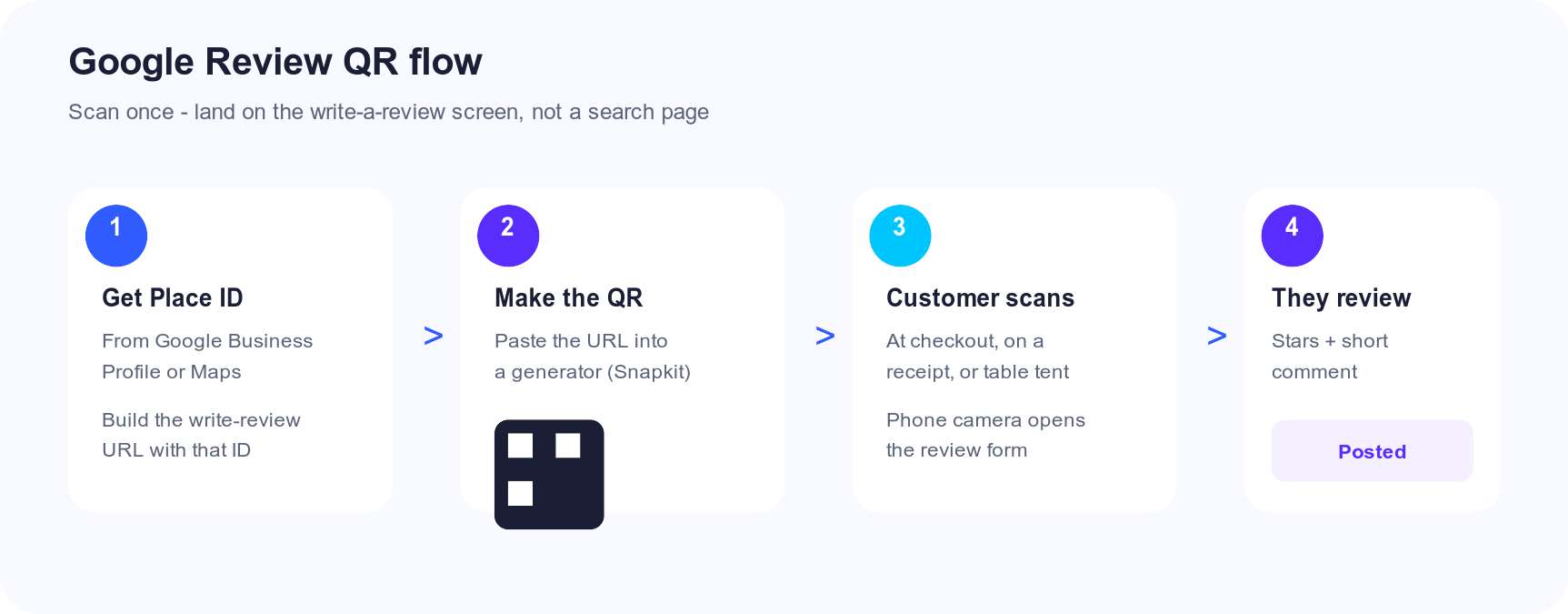
Listing Page vs Write-a-Review Link
This is the most important detail in the whole setup.
| Destination | What the customer sees | Extra taps | Review completion |
|---|---|---|---|
| Google Maps / Business listing | Your profile, photos, hours | Must find “Write a review” | Lower |
| Write-a-review URL | Review form opens (or prompts sign-in) | Usually zero | Higher |
| Homepage or social profile | Your brand, not Google | Many | Poor for Google ratings |
Always aim for the write-a-review destination. Your small business marketing guide mentions this briefly; here we go step by step so you don’t accidentally print the wrong link on 500 receipts.
How to Get Your Google Review URL
You need a stable link that opens the review flow for your Place ID.
Option A: Google Business Profile (recommended)
- Open Google Business Profile for the correct location.
- Find the option to get a review link / share a review form (wording varies by UI).
- Copy the short
g.page/...link or the longersearch.google.com/local/writereview?placeid=...URL. - Open it on your phone while signed into a Google account—confirm you see the review UI for the right business.
Option B: Place ID + write-review URL
If you only have a Place ID (from Maps or the Place ID Finder):
https://search.google.com/local/writereview?placeid=YOUR_PLACE_ID
Replace YOUR_PLACE_ID with the real ID (it looks like a long string starting with something like ChIJ...).
Test before you print. Wrong Place ID = reviews for someone else, or a dead end. Scan the finished QR on iPhone and Android.
Create the QR Code (Static Is Fine)
- Copy your write-a-review URL.
- Paste it into Snapkit.
- Download a high-resolution PNG.
- Keep a dark code on a light background—see color and contrast tips if you brand it.
For most local businesses, a static QR code is the right call. Your Google review URL doesn’t change often, and you don’t want review requests tied to a subscription that might expire (do QR codes expire?).
Use a dynamic code only if you need built-in scan counts or you plan to rotate destinations (for example, seasonal campaigns). Many owners get enough signal by watching Google review volume week over week.
Where to Place the Code
Timing beats clever design. Ask when the customer still feels the win.
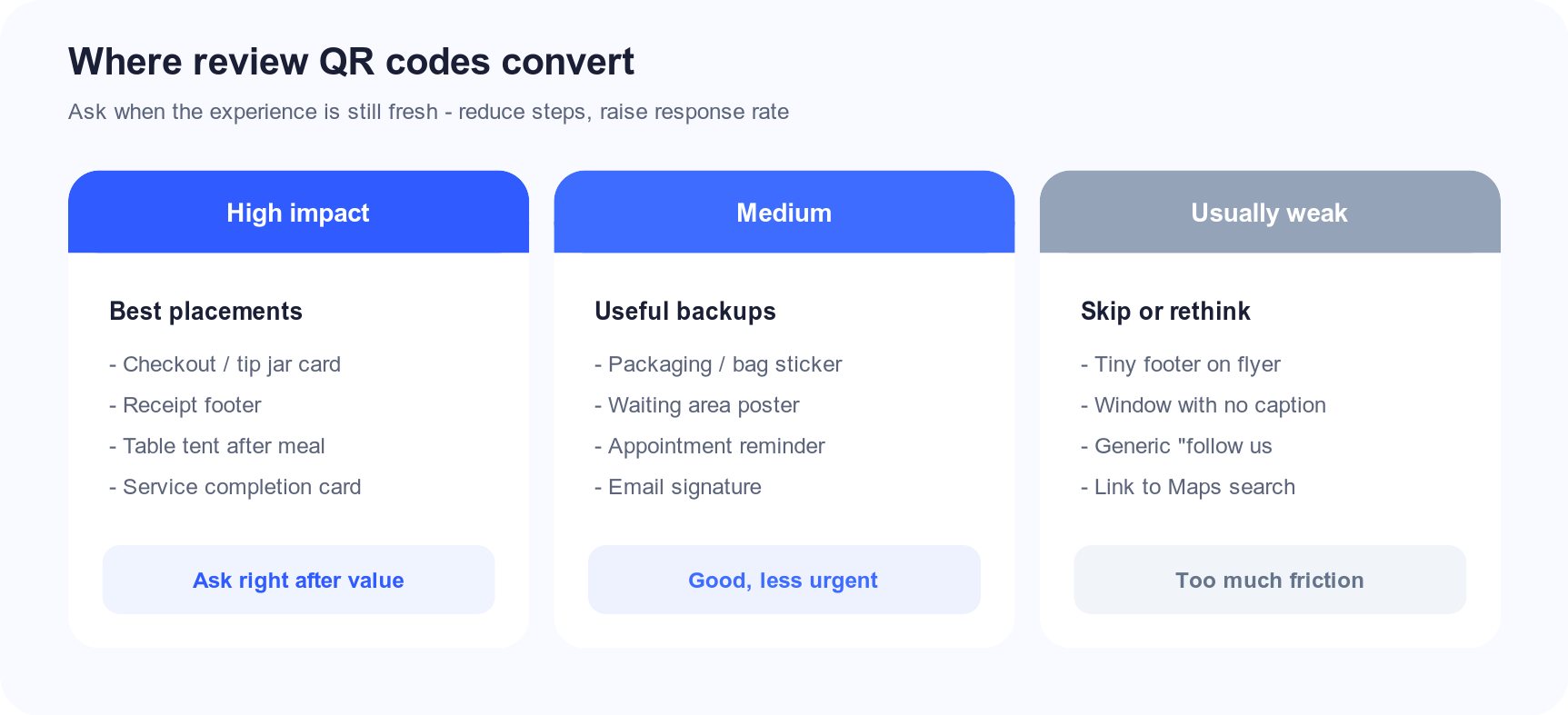
| Placement | Why it works | Watch out for |
|---|---|---|
| Receipt / invoice | Immediate post-purchase moment | Print size too small to scan |
| Checkout counter card | Staff can mention it once, politely | Don’t block the card reader |
| Table tent (after meal) | Diners are seated with phones out | Put it up after food, not only at greeting |
| Service completion card | Perfect for salons, clinics, repair shops | Hand it over with a thank-you, not a guilt trip |
| Packaging sticker | Travels home with the product | Add a short caption: “Loved it? Review us” |
| Waiting room poster | Captive audience | Weaker than post-service asks |
Caption matters. A bare QR code looks mysterious. Add one line:
- “Scan to leave a Google review — takes 30 seconds”
- “Happy with your visit? Tap to rate us on Google”
People scan when they know what happens next.
Print Specs That Don’t Embarrass You
Review codes often fail because they’re tiny or low-contrast—not because Google is hard.
| Spec | Recommendation |
|---|---|
| Minimum print size | ~2 cm / 0.8 in for arm’s-length scans; larger on posters |
| Quiet zone | Clear margin around the code (print guide) |
| Contrast | Dark modules on light background |
| Format | High-res PNG from Snapkit; avoid heavily compressed JPEGs |
| Test distance | Scan from the real distance customers will stand |
If something won’t scan after print, start with why QR codes won’t scan before reprinting a thousand stickers.
Script the Ask (Without Being Pushy)
The QR code is the tool. The line you say (or print) is the strategy.
Good:
- “If we earned five minutes of your time, a Google review helps other neighbors find us—here’s a quick scan.”
- On the card: “Thanks for visiting. Scan to share your experience on Google.”
Bad:
- “We’ll only help you if you leave five stars.”
- Paying for reviews or filtering only happy customers into the QR flow (against Google’s policies and trust).
Never incentivize fake positivity. Make the honest review path easier than doing nothing.
Multi-Location and Multi-Platform Notes
Multiple locations. Each storefront needs its own Place ID and its own QR code. Don’t print HQ’s review link on every franchise receipt.
Google first, then others. For most local searches, Google reviews move the needle hardest. Yelp, Facebook, or TripAdvisor can be secondary codes—or a short landing page with two buttons—if those platforms matter in your niche. Don’t dump five QR codes on one receipt; pick the primary platform.
Staff training. One friendly mention beats a stack of ignored stickers. Show new hires where the card lives and what the scan opens.
Common Mistakes
Linking to a Google search for your business name. Results can show competitors or the wrong branch.
Using a URL shortener you don’t control. Extra dependency; if the shortener dies, your printed reviews ask break.
Printing before testing signed-out and signed-in states. Some phones prompt Google login first—that’s normal. Confirm the flow still reaches your business.
Hiding the code with no label. Mystery squares get ignored.
Asking too early. “Rate us” on the welcome mat, before they’ve received anything, feels transactional.
Treating reviews as a one-week project. Leave the code up. Consistency compounds.
A Simple 30-Day Plan
| Week | Action |
|---|---|
| 1 | Confirm write-a-review URL; generate and test QR on two phones |
| 2 | Place codes at checkout + receipts (or table tents) with a clear caption |
| 3 | Brief staff on a one-sentence ask; fix any scan/print issues |
| 4 | Compare new Google reviews vs the prior month; adjust placement, not the pitch |
You’re not optimizing for scans—you’re optimizing for published reviews. If scans happen but reviews don’t, the URL or login friction is wrong. If nothing scans, fix size and placement first.
FAQ: Google Review QR Codes
How do I create a QR code for Google reviews?
Build or copy your Google write-a-review link, paste it into Snapkit, download the PNG, test the scan, then print with a short caption.
Should the QR open my listing or the review form?
Prefer the review form. Listing pages add a tap that many people skip.
Do I need a dynamic QR code?
Not for a stable Google review URL. Static codes are free and permanent. Choose dynamic if you need editable destinations or built-in analytics.
Where should I put it?
Wherever the experience is still warm: receipt, checkout, post-meal table tent, or service completion card.
Can I offer a discount for a review?
That’s a bad idea for policy and trust reasons. Make reviewing easy instead of buying ratings.
The Bottom Line
A Google review QR code is one of the highest-ROI prints a local business can make: cheap to create, easy to understand, and aimed at the exact moment customers are willing to help.
Get the write-a-review URL right, print it large enough to scan, label it clearly, and ask once—politely—when the experience is fresh.
Ready to create your QR code?
Try Snapkit's free QR code generator - no signup required.
Generate QR Code