Google Maps Location QR Codes on Snapkit (URL Tab)
Snapkit has no Maps or Geographic Location tab. Encode a Google Maps (or Apple Maps / OSM) HTTPS share or directions URL in the URL tab: working URL forms, why geo: fails on phones, iPhone vs Android, and Dynamic pitfalls.
Snapkit’s homepage has URL, Text, WiFi, Contact, SMS, Email, and Phone. There is no Maps tab, no Geographic Location builder, and no geo pin. A “find us” QR is a URL QR. You paste a finished https:// Google Maps share, search, or directions address (Apple Maps and OpenStreetMap HTTPS links work the same way), download the PNG, and the camera opens that HTTPS link. Maps does the rest.
This page is the maps URL construction and the Snapkit wiring. It is not a rewrite of QR code types (that page names Geographic Location but does not teach share-link construction), how Snapkit generates codes (geo is one line: “not a separate tab”), events (venue directions in one paragraph), or real estate (agent marketing). Those never teach maps/search/?api=1, maps.app.goo.gl, or why geo: dies on iPhone Camera. It is the Maps counterpart to WhatsApp wa.me and calendar templates.
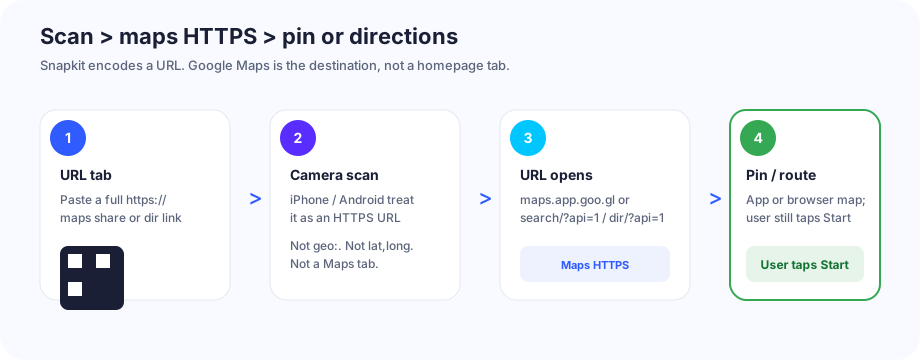
What the QR actually encodes
A location code on this product is a website URL. The printed modules are not a Snapkit place object, a live GPS feed, or a geo: payload Snapkit assembled for you. They are the same kind of URL payload as any other URL-tab code.
On scan, the camera treats it like any other https:// link. If the destination is Google Maps, the OS usually hands that host to the Google Maps app (when installed) or to the browser. The person still chooses a travel mode and taps Start. That is the same honesty as Snapkit’s SMS tab: the QR starts a destination, not a trip.
A write-a-review URL is a different Google job. That construction lives on Google review QR codes. Do not print a listing-or-review link and call it “directions.”
Test the live URL in a browser before you print. A truncated maps.app.goo.gl slug still makes a scannable PNG.
Exact URL formats
Snapkit’s URL field encodes whatever you typed. There is no silent https:// prefix and no maps formatter. Paste the finished URL, including the scheme.
Copied share link from Google Maps (what you want on a storefront). Open the place or dropped pin → Share → copy link. Current clients emit a short HTTPS host:
https://maps.app.goo.gl/…
Older prints sometimes used https://goo.gl/maps/…. Both are product-generated redirects, not strings you invent. Copy, open in a private window, confirm the pin, then paste into Snapkit. Do not type a maps.app.goo.gl slug from memory.
Documented search / pin (Google Maps URLs, api=1 required). Use this when you are building the string by hand. query is a place name, an address, or comma-separated latitude,longitude (encode the comma as %2C).
https://www.google.com/maps/search/?api=1&query=Lumen+Field
https://www.google.com/maps/search/?api=1&query=47.5951518%2C-122.3316393
A pin at coordinates alone has no place card. For a specific establishment, Google’s docs want a name (or coords) plus query_place_id:
https://www.google.com/maps/search/?api=1&query=Lumen+Field&query_place_id=ChIJKxjxuaNqkFQR3CK6O1HNNqY
Those Lumen Field examples are Google’s, not a Snapkit place library.
Documented directions. destination is required for a useful “take me there” mark. Omit origin so Maps starts from the phone’s current location. Optional travelmode is driving, walking, bicycling, two-wheeler, or transit.
https://www.google.com/maps/dir/?api=1&destination=Lumen+Field&travelmode=walking
https://www.google.com/maps/dir/?api=1 with no destination opens a blank directions form. Do not print that.
Address-bar place page. After you search on desktop, the location bar often looks like https://www.google.com/maps/place/…/@lat,lon,zoom. That is a real HTTPS page and it works. It is also long. Prefer the Share button’s short link for print.
Apple Maps HTTPS (Apple’s Map Links / maps.apple.com). q is a search. ll is latitude,longitude. daddr is a destination; omit saddr so the route starts “here.”
https://maps.apple.com/?q=Lumen+Field
https://maps.apple.com/?ll=47.5951518,-122.3316393&q=Lumen+Field
https://maps.apple.com/?daddr=Lumen+Field&dirflg=w
OpenStreetMap HTTPS. Marker plus hash zoom. You host nothing; OSM serves the map.
https://www.openstreetmap.org/?mlat=47.59515&mlon=-122.33164#map=17/47.59515/-122.33164
| You type in the URL tab | What the PNG holds | What you wanted |
|---|---|---|
Copied https://maps.app.goo.gl/… | That exact string | Product share pin / place card |
https://www.google.com/maps/search/?api=1&query=… | That exact string | Documented pin / search |
https://www.google.com/maps/dir/?api=1&destination=… | That exact string | Directions from “here” |
https://maps.apple.com/?q=… or ?ll=… or ?daddr=… | That exact string | Apple Maps search / pin / route |
https://www.openstreetmap.org/?mlat=…&mlon=…#map=… | That exact string | OSM marker |
maps.app.goo.gl/… or maps.google.com/?q=… (no scheme) | Bare host | Often shown as text; one brand may guess a site |
https://www.google.com/maps/search/?query=… (no api=1) | Incomplete Maps URL | Google’s docs: without api=1, query keys are ignored |
geo:47.59515,-122.33164 | Custom scheme | Many iPhone Cameras show text; no web fallback |
47.59515, -122.33164 in Text | Characters | Words on screen, not a map |
comgooglemaps:// or maps:// | Custom scheme | Cameras often ignore it |
Build query values with a real encoder (encodeURIComponent in a console). Encode commas in query= as %2C. Do not leave raw spaces, &, or # in a hand-built search string—those split the payload inside the QR. A copied maps.app.goo.gl link is already encoded; do not “clean” it.
Google’s Maps URLs are capped at 2,048 characters. Snapkit’s URL field warns earlier (1,200). A Share short link stays well under both. A place-page path plus UTM junk is how you burn the budget and densify the modules.
How to copy the link (then paste into Snapkit)
Google Maps, phone. Open the place or long-press the map to drop a pin → Share → Copy link. The clipboard is usually https://maps.app.goo.gl/…. Open that URL once in the phone’s browser and confirm the name and the pin before you leave the block.
Google Maps, desktop. Search or drop a pin → Share → copy the link. Same short host. The address-bar /maps/place/… string works if you already tested it; it is just longer.
Directions instead of a pin. In Google Maps, set the destination (leave origin empty / “Your location”) → Share that result, or build …/maps/dir/?api=1&destination=… yourself. Print “Scan for walking directions” only if you actually encoded dir or a shared directions link. A search URL is a pin, not a route.
Apple Maps / OSM. Share from those apps, or build the HTTPS forms above. Do not encode maps:// from an iPhone share sheet that offered a custom scheme.
Then, on snapkit.store:
- Choose URL. Not Text. Not WiFi. Not Contact.
- Paste into Website URL. Keep
https://. - Leave Make this QR Code Dynamic (Editable) unchecked unless you have a reason to retarget (next section).
- Download PNG. Do not screenshot the 256 px preview.
The generator does not rewrite Maps URLs. If the clipboard dropped the scheme, type it back.
URL tab vs Text vs WiFi vs Dynamic
Four things look like “put the place in the code.” Only one is the Snapkit path for a map.
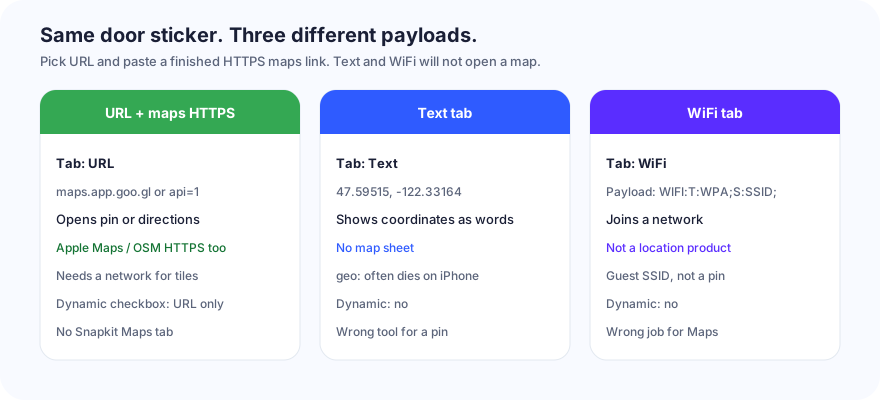
| Job | Snapkit tab | Encoded payload | Opens | Dynamic toggle? |
|---|---|---|---|---|
| Pin or directions in Google / Apple / OSM | URL | https://maps.app.goo.gl/…, …/maps/search/?api=1&query=…, …/maps/dir/?api=1&destination=…, https://maps.apple.com/?…, or OSM HTTPS | Maps app or browser map | Yes — URL only |
| Show the address as words | Text | Exact characters | On-screen text | No |
| Guest network | WiFi | WIFI:T:…;S:…;P:…; | Join-network sheet | No |
| Retarget the place after print | URL + Dynamic checked | Snapkit /r/…, then a 302 to the maps HTTPS URL | Browser → Snapkit → Maps | That is the toggle |
Putting geo:47.59,-122.33 in Text (or in URL) does not create a Maps tab Snapkit does not have. Some Android cameras notice geo: and offer Maps. iPhone Camera usually shows a string. URL vs Text is the tab choice; this page is the destination string.
Putting the street into Contact writes a vCard ADR: line. The phone may Save Contact. It will not open turn-by-turn. The vCard fields doc is that job.
Dynamic is not a fourth maps format. It is a short-link wrapper around the same HTTPS destination. The homepage checkbox exists only on URL. Static generation stays in the browser. Dynamic encodes https://snapkit.store/r/…, then a 302. Details: static vs dynamic and how Snapkit generates codes.
| Static PNG | Dynamic /r/ | |
|---|---|---|
| What the modules hold | The maps HTTPS URL itself | Snapkit short link |
Copied maps.app.goo.gl | Already short; pattern stays loose | Also short |
Long /maps/place/… + tracking | Pattern densifies; print larger | Short /r/ stays loose |
| Change the venue after print | Reprint | Retarget the destination |
| Works if Snapkit is unreachable | Yes | No — scan never leaves /r/ |
| Free trial expired | n/a | Lands on /expired |
| First URL the camera opens | google.com/maps, maps.app.goo.gl, maps.apple.com, or OSM | snapkit.store |
| App handoff into Google Maps | More reliable when the first host is already Maps | Extra hop; more browsers in the middle |
| Scan counts | No (this product does not invent pixel analytics on static files) | Yes, on a paid dynamic plan |
For a storefront or yard sign you will not reprint, static + a copied Share link is the boring default. Dynamic is the honest choice when the pop-up moves next month or you want /r/ analytics—and you have tested the hop on both phone brands.
Do not share one Dynamic short link across “find us” and “leave a review.” Retargeting the dashboard to a menu is how a door sticker stops opening Maps.
After the scan: iPhone vs Android
The PNG holds a URL. The OS decides what happens next. Camera apps are not identical. Google’s Maps URL docs: with the Google Maps app installed, the HTTPS link launches the app; without it, the same URL launches Maps in a browser.
| Situation | Typical result | Do not assume |
|---|---|---|
| Google Maps HTTPS, iPhone Camera, Google Maps installed | Preview of the https:// link, then the Google Maps app (or Safari first) | That Camera will skip Safari every time |
| Google Maps HTTPS, iPhone, no Google Maps | Safari loads Google Maps on the web | That Apple Maps opens from a google.com host |
| Google Maps HTTPS, Android Camera / Lens | Preview, then Chrome or the Google Maps app | Every OEM uses the same chrome |
Apple Maps https://maps.apple.com/?…, iPhone | Apple Maps app | Google Maps is involved |
| Apple Maps HTTPS, Android | Browser; there is no Apple Maps app on Play | A native map handoff |
| OSM HTTPS | Browser on openstreetmap.org | A native app claims the host |
geo:lat,lon, iPhone Camera | Often a text payload; Maps does not claim it | That RFC 5870 is “what phones do” |
geo:lat,lon, Android | Often offers Maps | Every ROM treats geo: the same |
| Dynamic URL, destination is Maps | Browser to Snapkit, 302, then the same as above | Handoff as clean as a first-party Maps URL |
| Airplane / dead data | Camera may lock; tiles and directions still need a network | Offline turn-by-turn the way a Text QR would |
Universal Links / App Links fire on an https://www.google.com/maps/… or https://maps.app.goo.gl/… navigation when Google Maps is installed. They do not fire on geo:, comgooglemaps://, or maps://. They do not fire on raw coordinates in Text.
Test the downloaded PNG on one iPhone and one Android. Confirm the place name (not a neighbor with a similar name). Confirm Start / Directions is still yours to tap. Confirm a phone without Google Maps still lands on a page you can live with.
Print and placement (storefront, flyer, event sign)
Do not reprint the size or print math here. A maps.app.goo.gl URL is a short HTTPS payload, so the pattern stays loose if you download the ~1024 px PNG instead of screenshotting the 256 px preview (test the file).
| Placement | What matters for Maps | Skip |
|---|---|---|
| Storefront window / door | Reading distance through glass; matte if laminate glare kills lock; street address in ink beside the mark | Light-blue modules “to look like Maps” |
| Counter tent / “find us” card | Arm’s-length scan; label “Scan for the map” so nobody expects Wi‑Fi or a menu | Tiny icon-sized marks next to the card reader |
| Flyer / handbill | Size for the real reading distance; quiet zone on busy art | Encoding a paragraph of UTM on a place-page URL |
| Event sandwich board / parking lot | Walking-distance scan; encode the entrance or lot, not the city centroid | One code for “venue + tickets + Wi‑Fi” |
| Yard / real-estate rider | Static pin to this listing’s entrance; reprint when the board moves | A Dynamic leftover from last weekend’s open house |
Print the human-readable street address beside the code. Dual-SIM travelers and “my camera will not lock” people still need a path. If the camera never locks, that is size, contrast, or crop — start at QR code won’t scan, not at api=1.
Event ops (registration, check-in, sponsors) stay on QR codes for events. This page is only the Maps URL.
Mistakes that never open a map
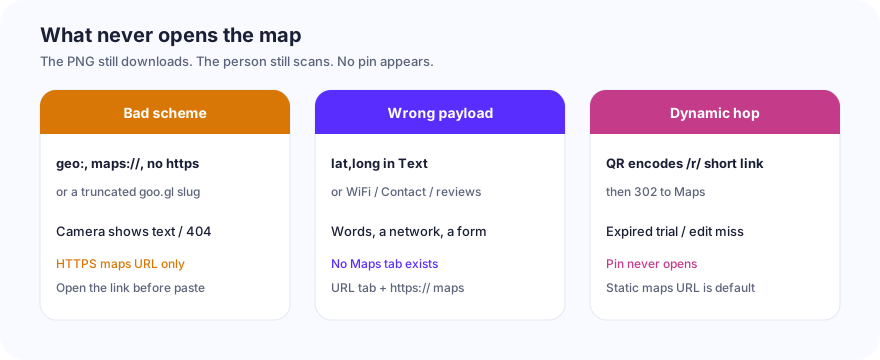
| What you did | What the scan does | Fix |
|---|---|---|
geo:47.59,-122.33 (URL or Text) | iPhone Camera often shows text; Android may offer Maps | HTTPS maps URL in the URL tab |
Bare 47.59515, -122.33164 in Text | Words on screen | URL tab, maps HTTPS |
Share link without https:// | Locks, then text or a one-brand open | Type the full scheme |
Truncated maps.app.goo.gl/… slug | 404 / empty map | Copy again; open it once before paste |
Hand-built search/dir URL missing api=1 | Google ignores the query keys | ?api=1&query= or ?api=1&destination= |
https://www.google.com/maps/dir/?api=1 (no destination) | Blank directions form | Add destination= |
Coords-only query= when you needed a business | Pin with no place card | Name, or name + query_place_id |
| Neighbor listing / wrong Place ID | Scan works; wrong door | Open the URL logged out; walk the pin |
UTM / gclid / leftover tracking on a long place URL | Denser modules; same map | Use the Share short link |
comgooglemaps:// or maps:// | Many cameras show nothing useful | https:// Maps URLs |
| Maps URL pasted into Text | Words; maybe a chip | URL tab |
| Street in Contact or password in WiFi | vCard or join-network | Wrong tab |
| Review / listing URL labeled “directions” | Profile or review form | Reviews vs this page |
| Dynamic URL, destination is Maps | PNG encodes /r/…, then a 302 | Works only while the redirect is live and still points at Maps |
| Dynamic, free trial expired | Scan hits /expired | Paid plan, or a static maps PNG |
| Dynamic, you later retarget to a menu | Door sticker opens lunch | Do not share that short link across jobs |
| Screenshot of the 256 px preview | Soft modules after print | Download PNG (~1024 px) |
| Light modules on a bright window | Camera never locks | Dark on light; see colors |
Dynamic on a maps destination is the subtle one. The print encodes https://snapkit.store/r/…, not maps.google.com. The phone must reach Snapkit, get a 302, then land on Maps. That extra hop is why you can retarget a moved food truck without reprinting. It is also why an expired trial, a typo in the dashboard, or Snapkit being unreachable means no map. iOS/Android app-handoff is more reliable when the first URL the camera opens is already Maps. For a sticker you will not reprint, static https://maps.app.goo.gl/… (or a short search/?api=1 URL) is the correct default.
Build list (this product)
- Open snapkit.store. Choose URL. Not Text. Not WiFi. Not Contact. There is no Maps tab.
- In Google Maps (phone or desktop), open the place or pin → Share → copy the
https://maps.app.goo.gl/…link. Or build Google’s…/maps/search/?api=1&query=…or…/maps/dir/?api=1&destination=…. Apple Maps (https://maps.apple.com/?…) and OSM HTTPS are valid if that is the audience. - Open that URL in a browser. Confirm the pin or the destination. Then paste the finished URL into Website URL. Include
https://. - Leave Dynamic unchecked unless you have a reason to retarget, and you have tested the
/r/hop on both phone brands. - Download PNG. Do not screenshot the 256 px box.
- Scan the file on an iPhone and an Android. Confirm the place name. Confirm Start is still yours to tap. Confirm a phone without Google Maps still has a path.
- Print the mark with a quiet zone and the street address beside it. A dead camera lock is size, contrast, or crop — start at QR code won’t scan, not at
geo:.
The generator’s job is the PNG. Google Maps’ job (or Apple Maps / OSM) is the pin. The URL tab is the only Snapkit control that connects the two.
Ready to create your QR code?
Try Snapkit's free QR code generator - no signup required.
Generate QR Code