How to Scan QR Codes Without an App (iPhone & Android)
Scan QR codes with your phone's built-in camera on iPhone and Android. No app download required—step-by-step guide for every device.
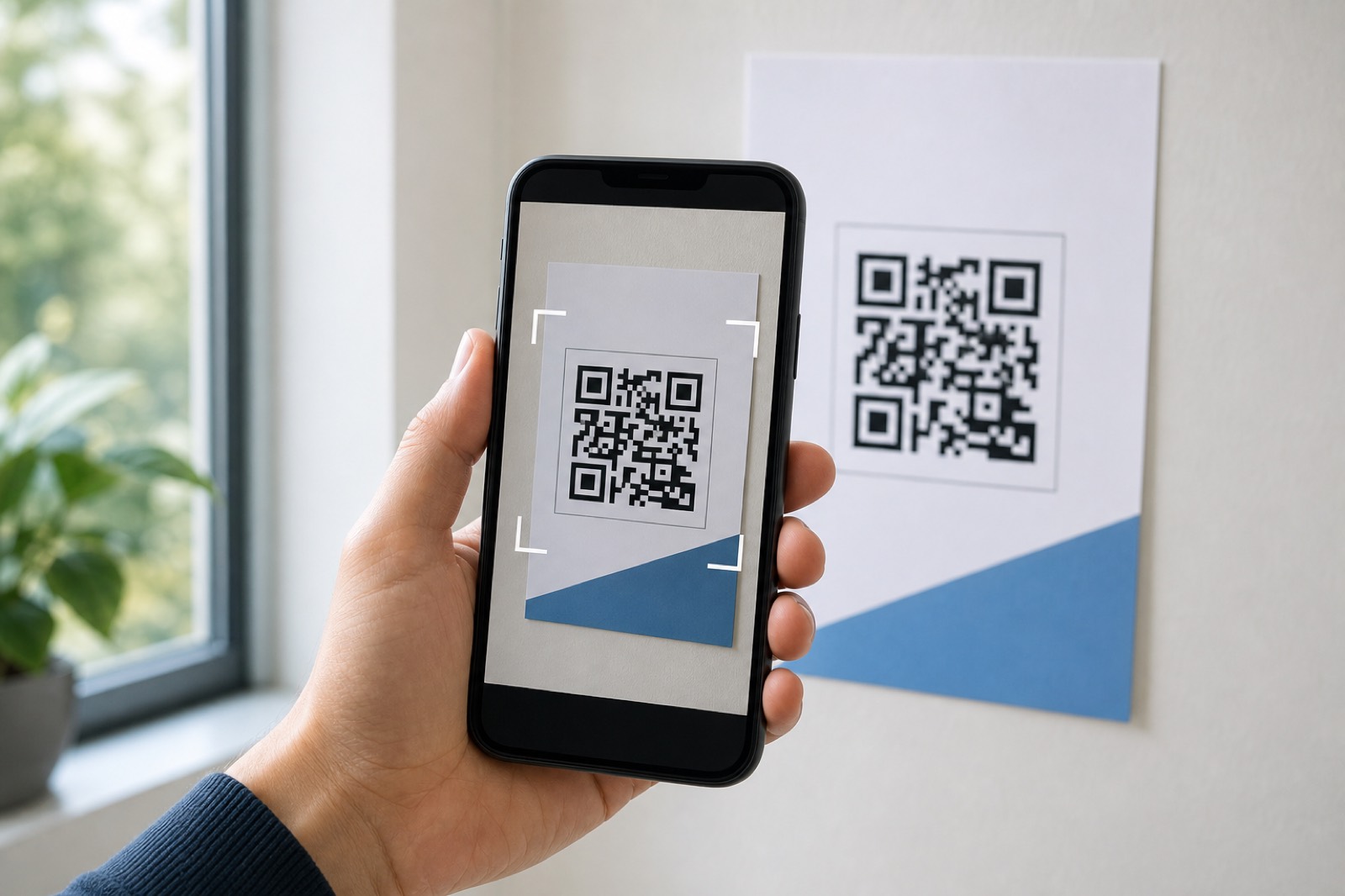
You Don't Need a Separate App
Here's something that surprises a lot of people: if your phone was made in the last several years, it can scan QR codes right from the camera. No app store, no downloads, no permissions to grant.
This wasn't always the case. For a long time, you needed a dedicated QR scanner app to do anything with those square codes. But starting around 2017-2018, both Apple and Google built QR recognition directly into their default camera apps.
Let's walk through exactly how to do it on each platform.
Scanning QR Codes on iPhone
If you're running iOS 11 or later (that's 2017 and beyond—virtually every iPhone in use today), your Camera app handles QR codes natively.
How to scan:
- Open the Camera app
- Point your camera at the QR code
- Hold the phone steady—no need to tap anything or take a photo
- A notification banner will appear at the top showing the URL or content
- Tap the banner to open the link
That's it. The phone automatically recognizes QR codes in the camera viewfinder and surfaces the result as a tappable notification.
If it's not working:
Check that QR code scanning is enabled. Go to Settings → Camera and make sure "Scan QR Codes" is toggled on. It's on by default, but sometimes gets turned off accidentally.
Also note that you need to be in Photo mode, not Video or Portrait. The camera has to be in its standard configuration for QR detection to work.
Scanning QR Codes on Android
Android's QR scanning varies a bit more by manufacturer and version, but most modern Android phones (running Android 9 and later) support native QR scanning.
The most common method:
- Open your Camera app
- Point at the QR code
- A prompt should appear on screen—either a link preview, a button, or a pop-up
- Tap to open
If your default Camera app doesn't show a QR prompt, try these alternatives:
Google Lens (built into most Android phones):
- Open the Google app or Google Photos
- Tap the Lens icon (looks like a camera with a square)
- Point at the QR code
- Lens identifies the code and shows the result
Samsung Galaxy phones: Samsung includes Bixby Vision in the camera app. Swipe to "More" modes or look for the Bixby Vision icon when pointing at a QR code.
Pixel phones: Google's Pixel devices have Google Lens integrated directly into the camera. Just point and wait for the code to be recognized.
Quick Settings tile: Some Android phones have a QR scanner shortcut in the Quick Settings panel (swipe down from the top). Look for a QR code icon. Tapping it opens a dedicated scanning interface.
What About Older Phones?
If you're using an older device—iPhone 6 or earlier, or an Android phone from before 2018—you'll likely need a third-party app.
Recommended free options:
- Google Lens (Android and iOS): Works as a standalone app and handles QR codes plus general visual search
- QR Code Reader by Scan (iOS): Lightweight and straightforward
- Binary Eye (Android): Open-source and privacy-focused
When choosing a QR scanner app, be cautious about permissions. A QR scanner needs camera access—that's reasonable. If it's asking for contacts, location, or other unrelated data, find a different app.
Scanning QR Codes on iPad and Tablets
iPads work identically to iPhones—open the Camera app, point at the code, tap the notification. Make sure you're running iPadOS 11 or later (which is essentially all iPads still receiving updates).
Android tablets vary more widely. Try the Camera app first; if that doesn't work, Google Lens is your most reliable fallback.
Scanning from a Screenshot or Saved Image
What if the QR code is already on your phone—in a screenshot, a saved image, or a document?
On iPhone (iOS 15+):
- Open the image in Photos
- Tap and hold on the QR code in the image
- A menu appears with the option to open the link
On Android (using Google Lens):
- Open Google Photos or the Google app
- Select the image containing the QR code
- Tap the Lens icon
- Lens identifies the code and shows the result
This is particularly useful when someone sends you a QR code in a message or email. You don't need to display it on another screen and point your camera at it—just open the image directly.
Troubleshooting Common Issues
The camera doesn't recognize the code:
- Make sure there's enough light on the code
- Hold the phone steady—autofocus needs a moment
- Check that the entire code (including the white border) is in frame
- If the code is on a screen, reduce glare and increase brightness
The link appears but won't open:
- Check your internet connection
- The destination website might be down
- On iOS, tap the notification—sometimes it appears briefly and disappears if you don't interact
The code seems damaged or incomplete:
- QR codes have error correction built in, but heavily damaged codes may not scan
- Try different angles and distances
- If it's a printed code that's faded or torn, you might be out of luck
Why This Matters
Built-in QR scanning removed one of the biggest adoption barriers. Remember when QR codes seemed like a gimmick that never caught on? Part of the problem was friction: most people didn't have a scanner app installed, and downloading one just to scan a code felt like too much effort.
Now that scanning is built into every phone, QR codes have finally hit their stride. Restaurant menus, event tickets, payment systems, Wi-Fi sharing, business cards—they all work because the scanner is already in everyone's pocket.
If you're creating QR codes for others to scan, you can safely assume that the vast majority of your audience won't need instructions. Just point your camera—they'll figure it out.
Create a QR code and test it with your own camera. Takes about five seconds.
Ready to create your QR code?
Try Snapkit's free QR code generator - no signup required.
Generate QR Code