QR Code for Restaurant Menu: The Digital Menu Guide
Create a QR code menu for your restaurant, café, or bar. Learn where to place it, what to link to, and how to make the transition smooth for customers.
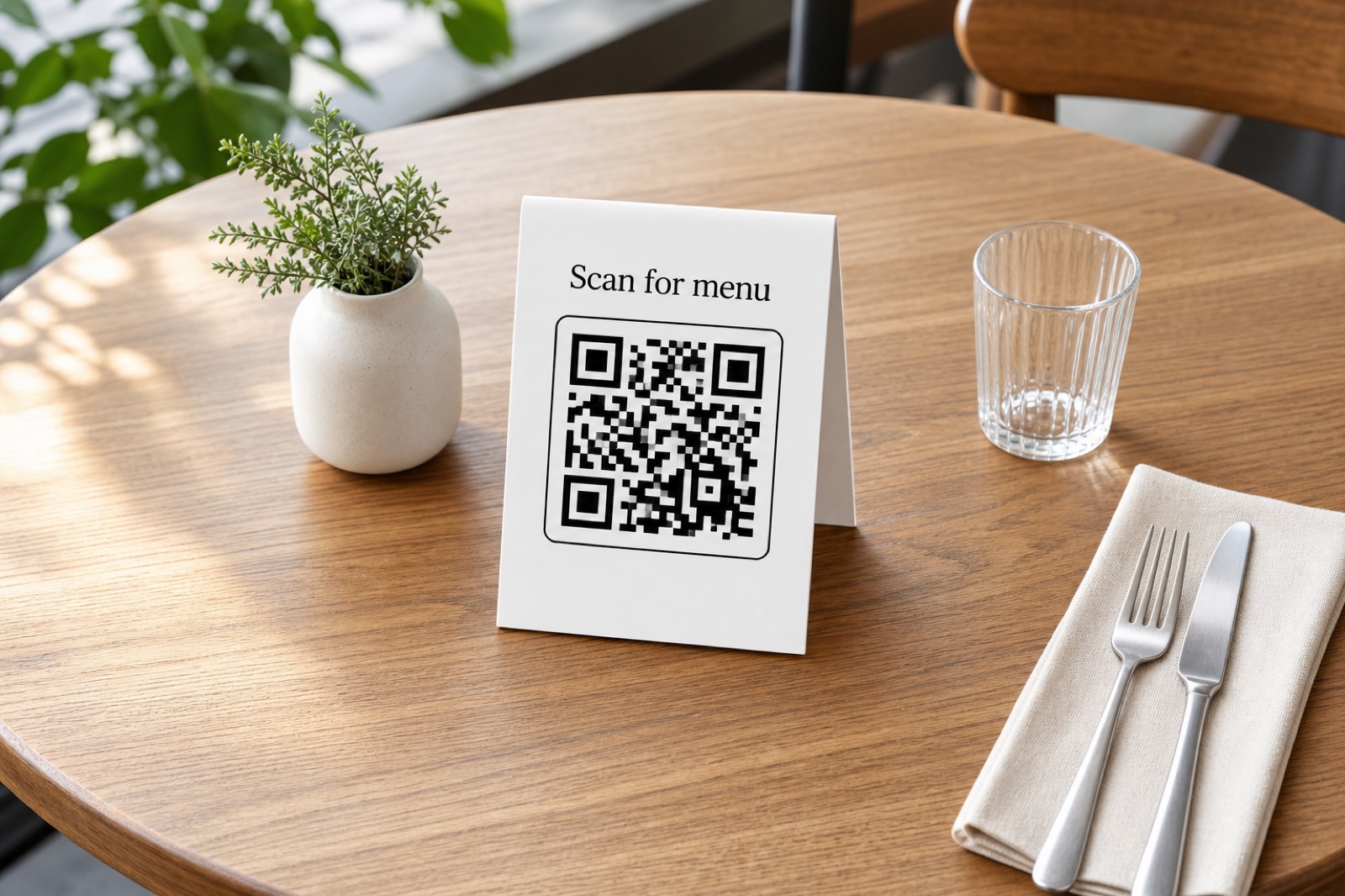
The QR Menu Is Here to Stay
What started as a pandemic necessity has stuck around because it actually makes sense. QR code menus let restaurants update prices, add seasonal items, and remove sold-out dishes without reprinting anything. Customers get the latest information, and owners save on printing costs.
Whether you're just setting one up or optimizing what you already have, here's how to do QR menus right.
What Should Your QR Code Link To?
You have options, and the right choice depends on your situation.
Option 1: A web page with your menu The most flexible option. Build a simple page on your website with your menu items, descriptions, and prices. When something changes, update the page—the QR code stays the same.
Pros: Easy to update, can include photos and formatting, works on any device Cons: Requires a website and some ongoing maintenance
Option 2: A PDF menu Upload your menu as a PDF to your website or a service like Google Drive, then link to that file. Customers download or view the PDF on their phone.
Pros: Looks exactly like your printed menu, easy to create if you already have a menu design Cons: PDFs aren't always mobile-friendly, updates require uploading a new file
Option 3: A dedicated menu platform Services like Square, Toast, or specialized menu apps host your menu and sometimes integrate with your POS system. Some offer online ordering, too.
Pros: Professional features, sometimes integrates with ordering and payment Cons: Usually costs money, you're dependent on another service
Option 4: Your online ordering page If you use DoorDash, Uber Eats, or a similar service, you could link directly there—but only if you want to push customers toward online ordering. For dine-in, this might not be ideal.
For most independent restaurants, a simple web page or PDF works perfectly. No need to overcomplicate it.
Creating Your QR Code Menu
Step 1: Get your menu online. Whether it's a webpage, PDF, or hosted platform, you need a URL that customers can visit.
Step 2: Keep the URL short and stable. A URL like yourrestaurant.com/menu is ideal. Avoid URLs with dates, version numbers, or temporary slugs that might change.
Step 3: Generate the code. Paste your menu URL into Snapkit and download the QR code.
Step 4: Test on multiple devices. Scan the code yourself. Have staff members test it on their phones. Make sure the menu loads quickly and looks good on various screen sizes.
Step 5: Print and display. More on placement below.
Where to Put Your QR Code
Visibility matters. Customers shouldn't have to hunt for it.
On every table: The most common approach. Table tents, stickers on the table surface, or small acrylic stands all work. Make sure the code faces up or toward where customers will be sitting.
At the entrance or host stand: Let customers check the menu while waiting to be seated. Useful for walk-ins deciding whether to stay.
On the window: Passersby can scan and browse your menu before coming in. This works especially well for cafes and quick-service spots.
On receipts: Print the QR code on receipts for customers who want to look up the menu later, order online, or leave a review.
In the physical menu: If you still offer paper menus, include the QR code on the cover or back. This gives customers the option to use digital if they prefer.
Making the Digital Menu Customer-Friendly
A QR code is only as good as what it links to. Here's how to make the landing experience smooth:
Prioritize mobile. Your menu will be viewed on phone screens. If you're using a PDF, make sure text is readable without zooming. If you're using a webpage, ensure it's responsive and loads quickly.
Include prices. Customers scanning a menu want to know what things cost. Don't make them guess or ask a server.
Keep it organized. Clear categories, legible fonts, and logical ordering. If your physical menu is organized well, your digital menu should follow the same structure.
Add photos (judiciously). A few good photos of signature dishes can help. But don't overdo it—too many images slow down loading and make the page harder to navigate.
Note dietary information. Vegan, vegetarian, gluten-free, allergen info—this is easier to include on a digital menu than a printed one, and customers appreciate it.
Handling Updates
One of the biggest advantages of QR menus is easy updates. Here's how to manage them:
Keep the URL stable. Change the content at yourrestaurant.com/menu, not the URL itself. If you change the URL, you'll need new QR codes.
Date your updates internally. Keep track of when you last updated the menu so staff know they're looking at current info.
Test after updates. After making changes, scan your QR code and verify everything looks right.
Consider seasonal versions. If you have dramatically different menus for lunch vs. dinner or summer vs. winter, you might want separate QR codes and landing pages rather than one that changes constantly.
What If Customers Don't Want to Use Their Phone?
Not everyone loves digital menus. Some customers find them inconvenient—their phone is dead, they don't have data, or they just prefer paper.
Smart restaurants keep a few physical menus on hand for these situations. Don't force digital on customers who don't want it. The QR code should be an option, not the only option.
A simple solution: keep a small stack of laminated menus that servers can provide on request. These can be sanitized between uses if that's a concern.
Updating Without Reprinting Codes
This is where static QR codes shine. As long as your URL stays the same, you can change what's on the page without touching the physical code.
Changed your lunch specials? Update the webpage. 86'd the salmon? Remove it from the menu. New seasonal cocktails? Add them in. The QR code printed on your tables continues to work, pointing to whatever the current version of your menu page shows.
The only time you need new QR codes is if you change the URL itself—which you should avoid doing once codes are printed.
Getting Started
Setting up a QR menu doesn't have to be complicated:
- Put your menu on a webpage or PDF
- Pick a permanent URL
- Generate your QR code at Snapkit
- Print and display at every table
- Test it yourself before customers arrive
From there, updates are just a matter of editing your webpage or uploading a new PDF. The QR code does its job indefinitely.
Your customers get instant access to your menu, and you never have to reprint because a price changed by fifty cents.
Ready to create your QR code?
Try Snapkit's free QR code generator - no signup required.
Generate QR Code